PDF to SVG Conversion Guide: Online Tools and Developer APIs
How to Convert PDF to SVG Without Losing Quality
Content Overview:
- Reasons to Convert PDF to SVG Format
- Method 1. Convert PDF to SVG Online with CloudxDocs
- Method 2. Programmatic PDF-to-SVG Conversion with Spire.PDF
- Tips for Better PDF to SVG Conversion Output
Graphics and design workflows increasingly rely on vector formats for scalability, responsiveness, and high-quality visuals. SVG (Scalable Vector Graphics) is one of those formats — lightweight, XML-based, and perfect for web display of vector content without loss of detail when scaling.
But what if your source files are locked up in PDF format? In this article, we’ll walk you through everything you need to know about how to convert PDF to SVG with practical tools and examples. Whether you’re a web designer, developer, or just someone who needs to extract scalable visuals from PDFs, you’ll find clear, actionable help here.
Reasons to Convert PDF to SVG Format
Before we dive into the how-to, let’s understand why you might want to do this conversion in the first place. PDF files are excellent for preserving document layout across platforms, but they are not always ideal for web use or design workflows where you need:
- Infinite scalability: SVG is resolution-independent, so graphics can be scaled to any size without losing clarity.
- Editable vector graphics: Converting to SVG allows logos, icons, and diagrams to be easily modified in design tools or code.
- Lightweight file size: SVG files are typically smaller and load faster than PDFs in web browsers.
- Searchable and scriptable content: Text and shapes in SVG remain accessible, searchable, and easy to manipulate with CSS or JavaScript.
With these advantages in mind, converting PDF files to SVG becomes a practical choice for both web developers and designers. Depending on your workflow and technical background, there are different ways to achieve this conversion.
In the following sections, we’ll walk through two common approaches: using an online PDF to SVG converter for quick, no-code needs, and converting PDF to SVG programmatically with an API for more flexible and automated workflows.
Method 1. Convert PDF to SVG Online with CloudxDocs
If you’re looking for a quick and hassle-free way to convert PDF files to SVG without writing any code, an online converter is often the best choice. These tools are ideal for one-off conversions or users who prefer visual, browser-based workflow.
One of the most user-friendly options available is the CloudxDocs PDF to SVG Converter, a free online service that runs entirely on your browser. CloudxDocs is an online document processing platform that offers a wide range of file conversion and management tools, helping users handle PDF and Office documents quickly and securely without installing any software.
Key features to help you choose CloudxDocs:
- Works directly in your browser on Windows, macOS, Linux, and mobile devices
- Keeps the original formatting, including fonts and page layout
- Supports a wide range of document conversions including HTML to Image, Excel to CSV, ODT to Word, etc.
- Delivers a lightning-fast online conversion experience
- Automatically deletes all uploaded files within 24 hours to ensure data security and privacy
Specific steps of using CloudxDocs to save PDF files into SVG format:
Step 1. Visit the Official page of CloudXDocs PDF to SVG Online Converter.
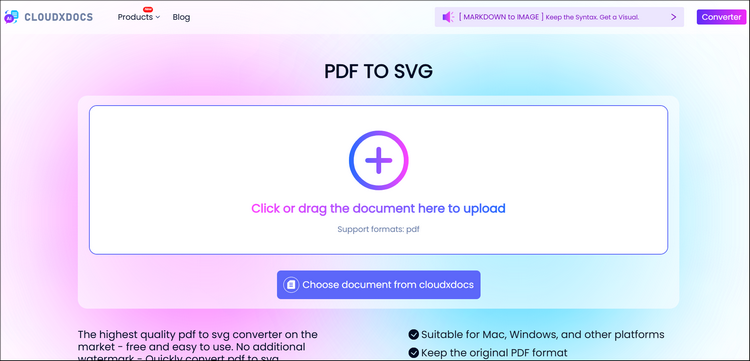
Step 2. Click or drag to upload your original PDF file, then wait for the auto file analysis. 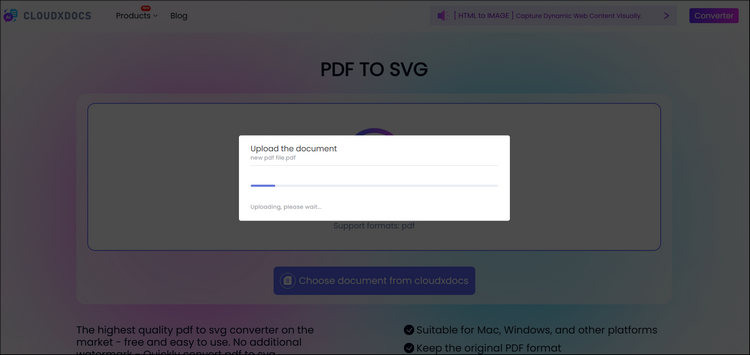
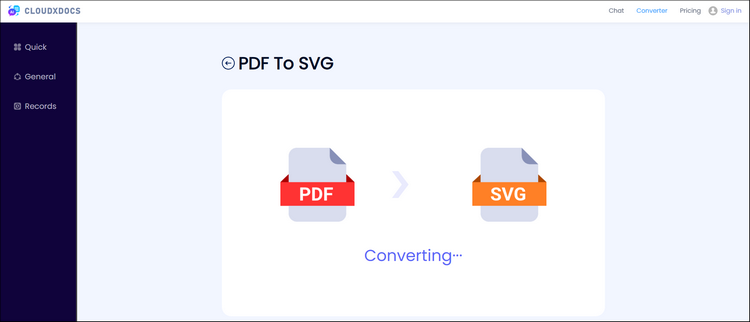
Step 3. CloudxDocs will start converting right after file analysis. So just wait patiently for the output.
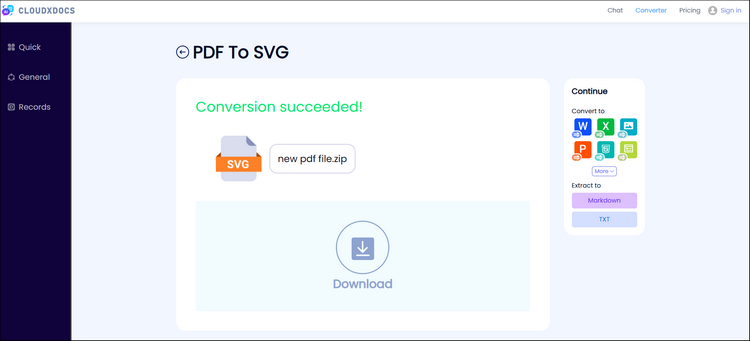
Step 4. The converted SVG files will be stored in a compressed file folder. Click “Download“ to unzip it and save all the converted SVG files to your computer.
Method 2. Programmatic PDF-to-SVG Conversion with Spire.PDF
While online tools like CloudxDocs are ideal for quick, one-off PDF conversions without installation, they may not be sufficient for more complex or large-scale scenarios. If you need full control over the conversion process, higher performance for batch tasks, or seamless integration into your own applications, a developer-oriented solution becomes essential.
This is where Spire.PDF stands out. Designed for professional and enterprise use, Spire.PDF provides a powerful PDF API that enables accurate PDF-to-SVG conversion, advanced document manipulation, and reliable automation — all without relying on external services or internet access.
Sample C# Code of using Spire.PDF for .NET to convert PDF to SVG format:
1 | using Spire.Pdf; |
Read the following post for a more detailed tutorial: C#/VB.NET: Convert PDF to SVG
With Spire.PDF you can also convert specific pages, set custom output sizes, and integrate conversion into larger workflows such as batch processing.
Tips for Better PDF to SVG Conversion Output
Regardless of the PDF-to-SVG method you choose, a few best practices can help ensure clean, usable SVG output. Vector-based PDFs convert more accurately than image-heavy files, while text may be outlined as paths for visual fidelity, reducing editability. Complex layouts may also require minor cleanup in vector editing tools like Illustrator or Inkscape.
Below are a few tips to help improve the conversion results:
- Vector-native content converts best: If your PDF is mostly images, the SVG output may embed raster elements or require tracing.
- Text may convert as paths: Some converters outline fonts for fidelity, which affects editability.
- Complex layouts may need cleanup: If your SVG will be used in design tools, minor clean-up in vector editors (e.g., Illustrator, Inkscape) might be needed.
- Test scaling behavior: SVGs should scale without quality loss — preview them in browsers or editors to ensure fidelity.
Conclusion
Converting PDF files to SVG is a practical requirement for designers, developers, and content creators who need scalable, high-quality graphics.
Online tools like CloudxDocs provide a fast, no-friction option for simple or occasional conversions, while developer libraries such as Spire.PDF are better suited for automation, advanced control, and large-scale projects.
By choosing the right tool for your workflow, you can efficiently transform static PDF documents into flexible, reusable SVG graphics.