PowerPoint to TXT: How to Extract Plain Text from a PowerPoint File
PowerPoint to TXT: 3 Easy Ways to Extract Text from PPT & PPTX Files
Quick Answer:
- Manual export: Use Google Slides
- Fast online conversion: Use CloudxDocs Online Converter
- Automation and batch processing: Use Spire.Presentation for .NET
PowerPoint files are widely used for presentations, training materials, and business reports. However, there are many scenarios where you don’t need the design, animations, or images—you just need the plain text content. Whether you’re preparing documentation, analyzing content, or repurposing slides for other platforms, converting PowerPoint to TXT becomes a practical and efficient solution.
In this guide, we’ll walk through why extracting plain text from PowerPoint matters, and explore multiple methods to achieve it—from quick online tools to developer-focused solutions.
What Does PowerPoint to TXT Conversion Help You
Before exploring the available methods, it’s worth taking a step back to understand why extracting plain text from PowerPoint can be so valuable. In many real-world scenarios, users don’t need the visual design of slides—they need the content itself in a simpler, more flexible format.
Here are the key benefits of converting a PowerPoint file to TXT format:
- Lightweight and universally accessible: TXT files can be opened on virtually any device or operating system without additional software.
- Ideal for content migration and bulk processing: Plain text makes it easy to move content between systems or platforms.
- Simplifies data analysis and text processing: Removing layouts, images, and formatting leaves clean, structured text that’s easier to parse.
- Improves searchability and indexing: TXT format is highly efficient for indexing by search engines or internal search systems.
- Enables content reuse across formats: Extracted text can be repurposed into blogs, documentation, emails, or scripts.
- Developer-friendly for automation workflows: TXT integrates seamlessly into pipelines and backend systems.
If your goal is efficiency, automation, or content reuse rather than presentation design, converting PowerPoint to TXT is often the most practical first step.
Method 1. Extract Text Using PowerPoint with Google Slides Manually
If you’re looking for a quick and accessible way to convert PowerPoint to TXT, Google Slides offers a simple workaround—especially since Microsoft PowerPoint itself does not support directly saving presentations as plain text (.txt) files. Instead of relying on additional tools or complex steps, you can simply upload your PPT file to Google Slides and export the text in just a few clicks.
As a cloud-based tool, Google Slides runs smoothly on both desktop browsers and mobile apps, allowing you to perform the conversion anytime, anywhere. There’s no need to worry about device compatibility or software installation, which makes it a practical option for users who want a fast and flexible way to extract text from presentations.
Full steps of converting a PowerPoint file into TXT format with Google Slides:
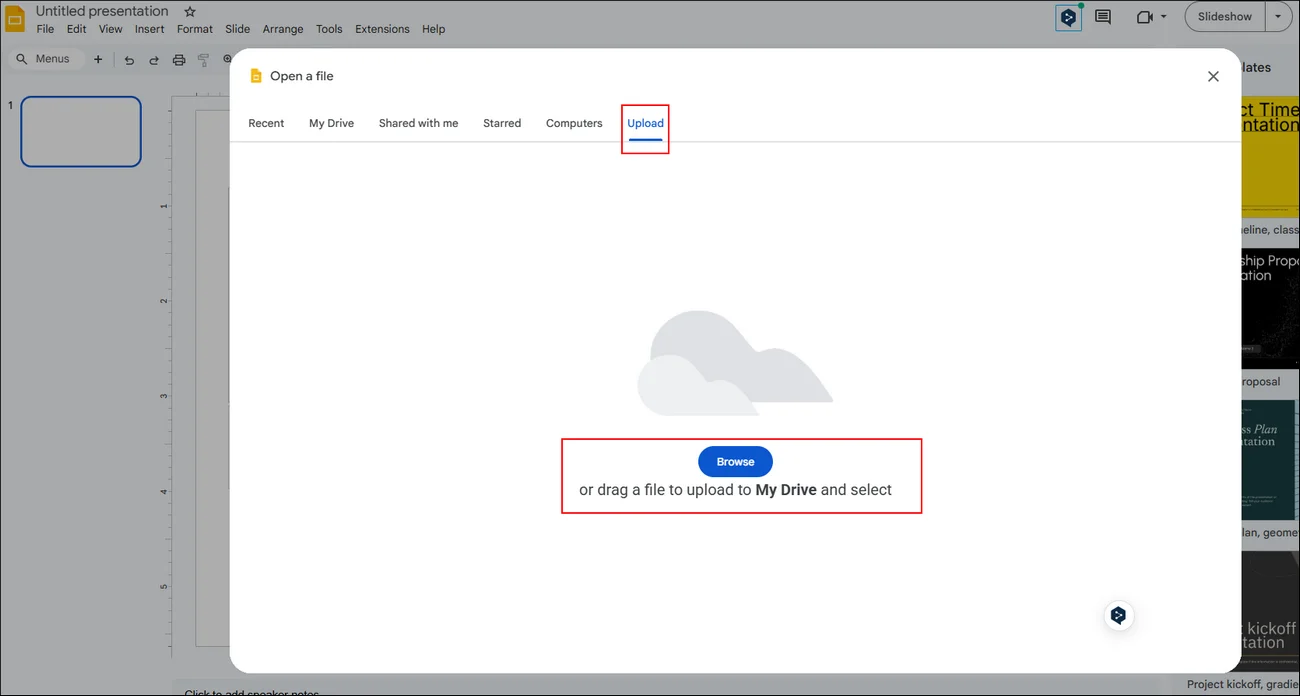
Step 1. Open your PowerPoint file with Google Slides. It works on both cellphone application and desktop browser.
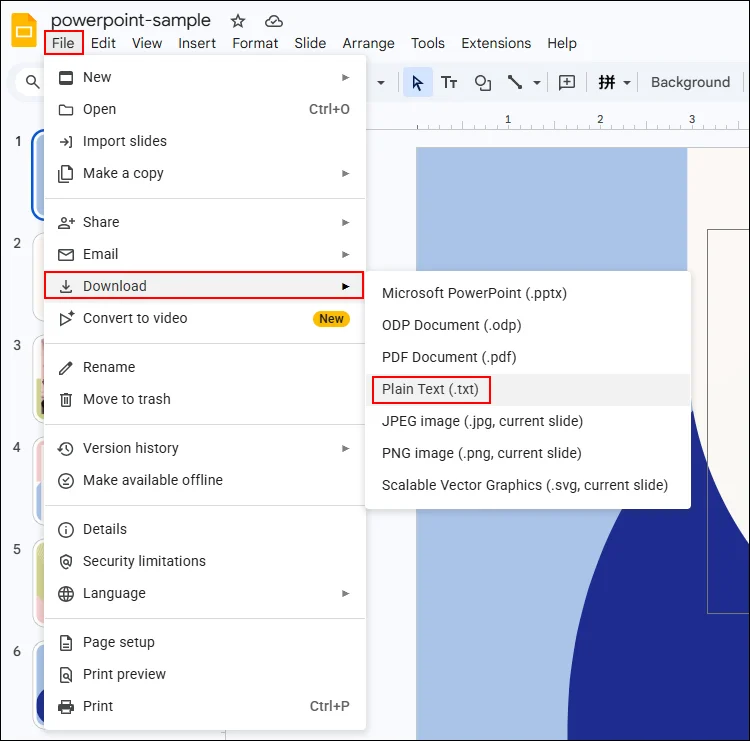
Step 2. Go to “File“ > “Download“ to save the PowerPoint file into other format. Find “Plain Text(.txt)“ and click to extract all text and save in TXT format.
Method 2. Extract Text from a PowerPoint File with an Online Converter
If manually locating and exporting a .txt file feels inefficient, switching to an online conversion tool is often the smarter choice. These tools handle everything in the browser—just upload your file, and the conversion is completed automatically, saving you both time and effort.
One practical option is CloudxDocs Online Converter, which makes it easy to convert PowerPoint files to TXT without installing any software. Simply upload your PPT or PPTX file, and the platform will extract the plain text for you in seconds.
Here are some key features and advantages of CloudxDocs to help you choose:
- No installation required: Fully browser-based, so you can start converting files instantly without downloading or setting up any tools.
- Fast and straightforward conversion: Upload your PowerPoint file and extract text in just a few clicks, with minimal manual steps.
- Supports multiple file formats: Not limited to PowerPoint—also works with Word, Excel, PDF, images, and more, making it a versatile document tool.
- Cross-platform compatibility: Works on Windows, macOS, Linux, as well as mobile devices, ensuring flexibility across different environments.
- Ideal for quick, on-the-go tasks: Especially useful when you need a fast solution without relying on desktop software or development tools.
If you don’t want to waste your time looking for the specific .txt file manually, turning into an online conversion tool helps you the most in this situation. Online tools will help you manage conversion right after the original file is uploaded.
Full steps of using CloudxDocs to convert your PowerPoint files to TXT format:
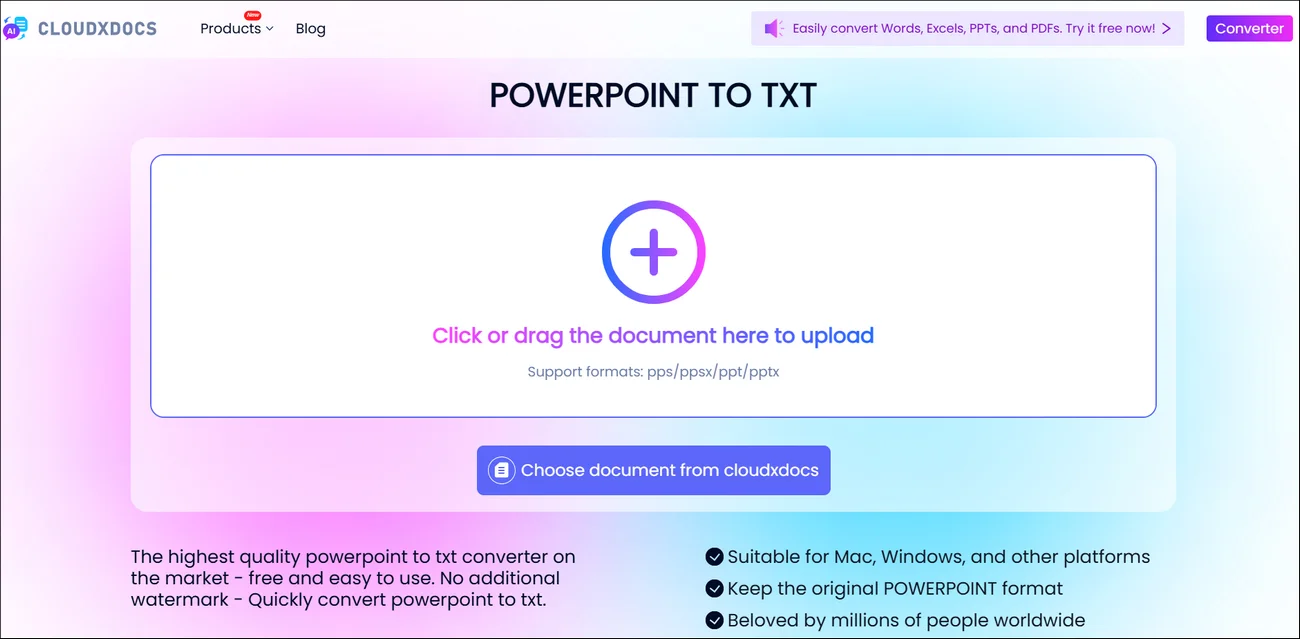
Step 1. Open the official site of CloudxDocs Online PowerPoint to TXT Converter to upload your PowerPoint file. You can click or directly drag your PowerPoint file to the main interface.
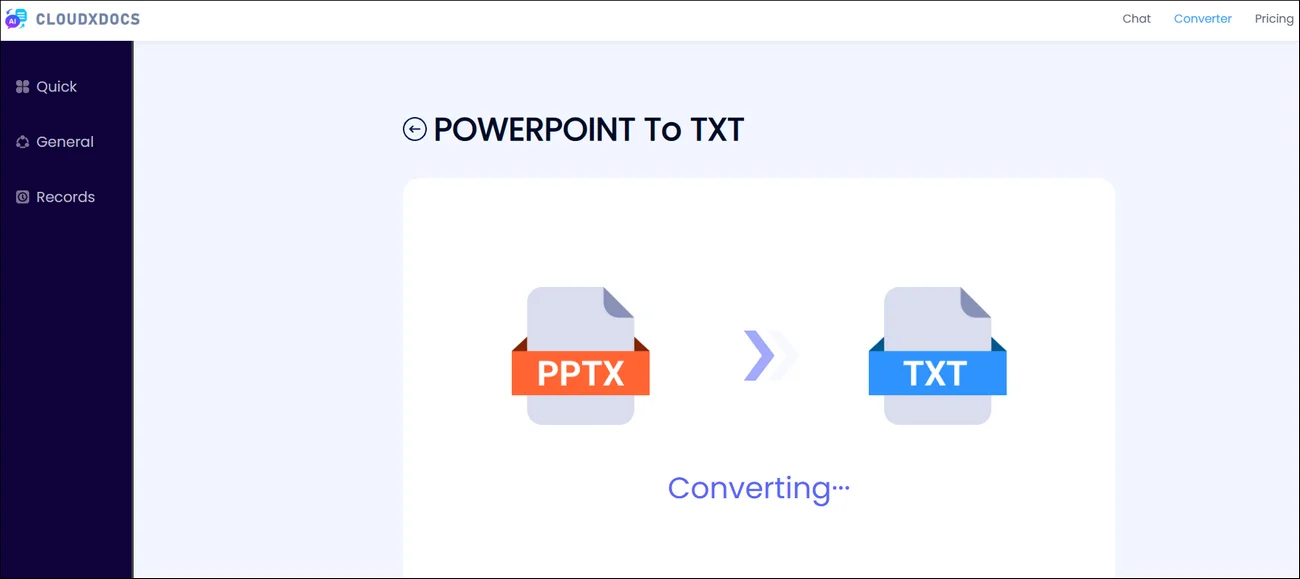
Step 2. Wait for CloudxDocs automatic file analysis and format conversion.
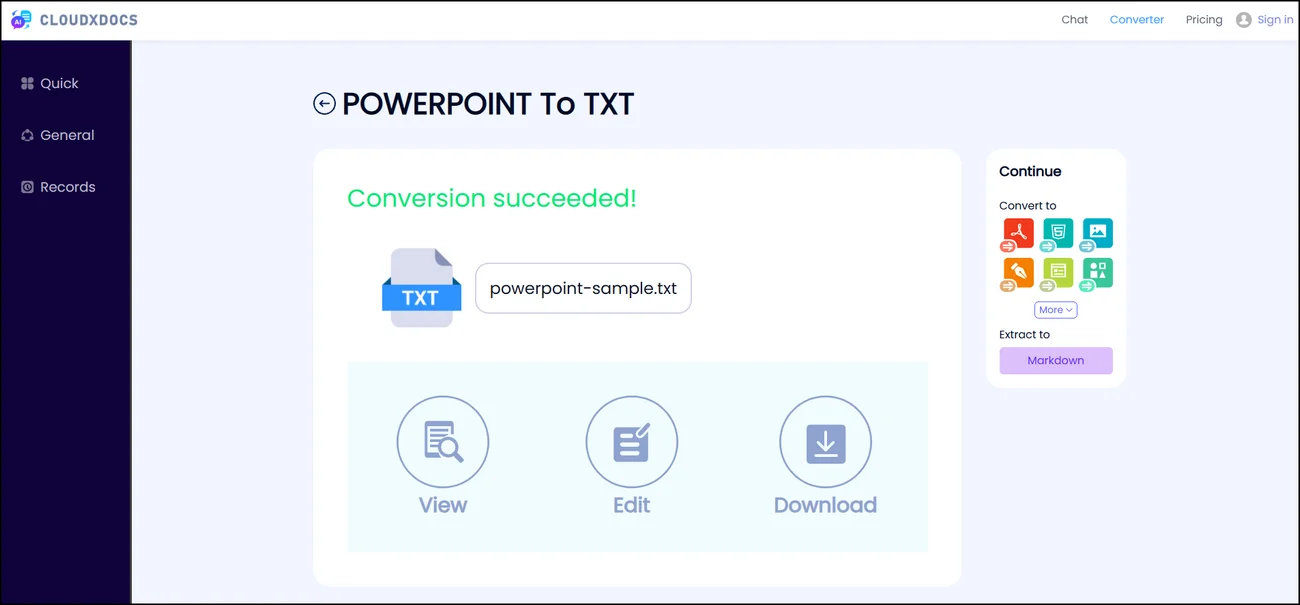
Step 3. After conversion, you can click the “Download“ button and save the TXT file to your local file location.
Method 3. Convert a PowerPoint File to TXT Format Programmatically
If your needs go beyond one-off conversions—such as handling large volumes of PowerPoint files or embedding text extraction into your own application—manual and online tools quickly become limiting. In these cases, a programmatic solution gives you far more control, efficiency, and scalability.
This is where Spire.Presentation for .NET comes in. It offers a robust API designed for developers, enabling you to extract text from PowerPoint files with minimal code. Whether you’re building automated workflows, backend services, or document processing systems, it provides a reliable way to handle PowerPoint content extraction directly within your application.
Add Spire.Presentation API:
You need to add Spire.Presentation for .NET as your references before the conversion process starts. You can download the API file from the official download link or install with NuGet with code directly:
1 | PM> Install-Package Spire.Presentation |
Example Code:
1 | using Spire.Presentation; |
Conclusion
Converting PowerPoint to TXT is a simple but powerful way to unlock the raw content inside your presentations. By removing design elements and focusing purely on text, you make your content easier to reuse, analyze, and integrate into other workflows.
The right method depends on what you actually need. If you just want a quick, no-installation solution, tools like CloudxDocs can get the job done in seconds. If you prefer a manual approach, Google Slides offers a convenient workaround. But if you’re dealing with large-scale processing or building automated systems, using a library like Spire.Presentation is the most efficient and scalable option.
Instead of overthinking the tool, focus on the outcome: fast access to clean, structured text. Once you have that, you can plug it into anything—from content creation to data pipelines.