PowerPoint to SVG Conversion: Manual, Online, and Programmatic Methods
PowerPoint to SVG: A Complete Guide for Developers and Designers
Methods Included:
- Method 1. Export PowerPoint to SVG Manually with Microsoft PowerPoint
- Method 2. Convert PowerPoint to SVG with Online Converter
- Method 3. Convert PowerPoint to SVG Programmatically
Converting PowerPoint presentations to SVG (Scalable Vector Graphics) has become increasingly important for developers, designers, and content creators who need high-quality, scalable visuals for modern applications. Unlike raster images such as PNG or JPEG, SVG files retain sharpness at any resolution, making them ideal for web design, responsive layouts, and interactive content.
Whether you’re extracting slide graphics for websites, building design systems, or integrating presentation content into applications, understanding how to convert PowerPoint to SVG efficiently can save time and significantly improve output quality.
In this guide, we’ll walk through practical methods to convert PowerPoint to SVG, including manual approaches, online tools like CloudxDocs, and programmatic solutions using Spire.Presentation.
Why Convert PowerPoint to SVG?
PowerPoint files (PPT/PPTX) are widely used for creating presentations, training materials, and visual reports. However, when it comes to modern web environments or scalable design systems, these formats are not always the most efficient choice. For example, PowerPoint content is typically rasterized when exported as images, which can lead to quality loss and limited flexibility in responsive layouts.
In contrast, SVG (Scalable Vector Graphics) is a vector-based format built on XML, specifically designed for the web. It not only preserves visual quality at any scale but also integrates seamlessly with front-end technologies. This makes SVG a more practical and future-proof option for developers and designers who need high-quality, adaptable visual assets.
SVG offers several key advantages:
- Resolution independence: Graphics remain sharp on all screen sizes, including Retina and high-DPI displays, without pixelation
- Smaller file size: Compared to high-resolution images, SVG files are often more lightweight, improving page load speed and overall performance
- Editable structure: SVG elements can be directly styled and manipulated using CSS and JavaScript, enabling dynamic interactions and customization
- Cross-platform compatibility: Fully supported by all modern browsers and devices, ensuring consistent rendering across environments
For these reasons, converting PowerPoint slides or individual elements into SVG has become an increasingly common practice in web development, UI design, and content publishing workflows.
Method 1. Export PowerPoint to SVG Manually with Microsoft PowerPoint
Before exploring automated tools or programmatic solutions, it’s worth starting with the most straightforward approach—using Microsoft PowerPoint itself. For users who prefer not to install additional tools or write code, PowerPoint provides a built-in way to export slides or specific elements as SVG files.
While this method may not be ideal for large-scale or batch conversions, it offers a quick and accessible option for simple use cases. It also gives users direct control over what content to export, making it especially useful for designers or content creators who need a fast, visual-first workflow.
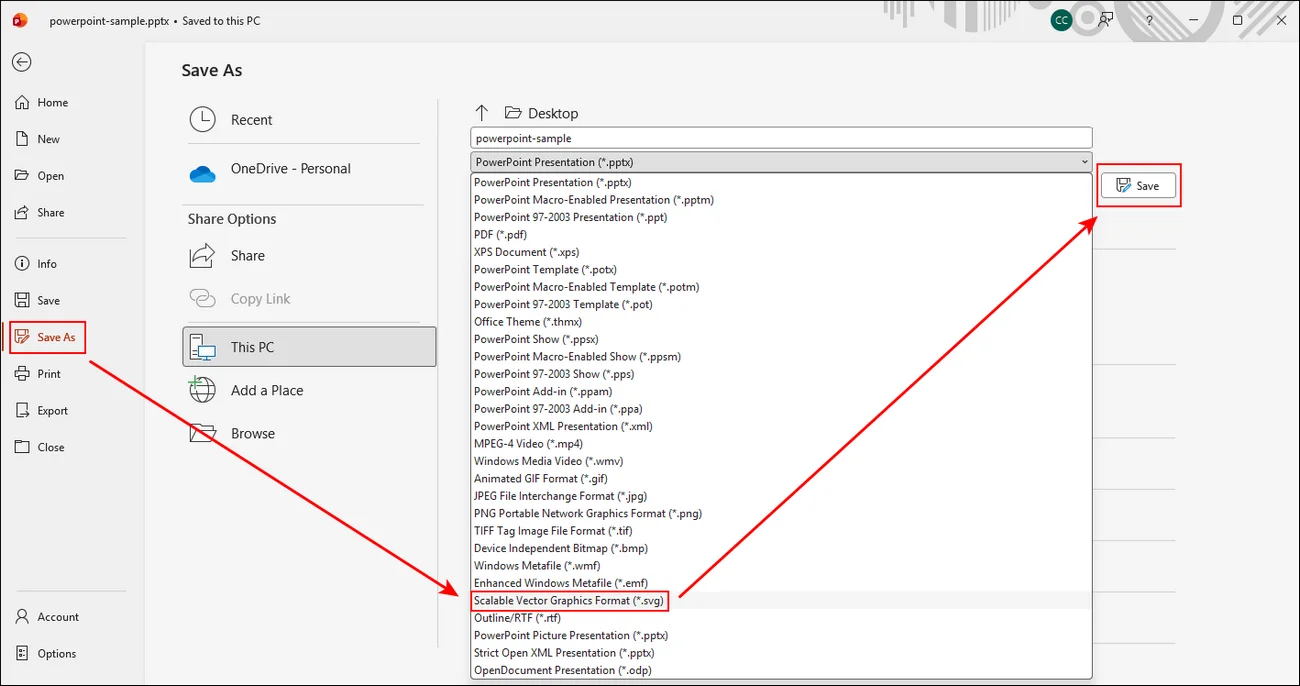
Full steps of saving a PowerPoint file into SVG format in Microsoft PowerPoint directly:
Step 1. Open your PowerPoint presentation with Microsoft PowerPoint first.
Step 2. Select the slide or object you want to export. Go to “File“ > “Save As“ from the Ribbon.
Step 3. Right-click and choose “SVG“ as the output format.
Method 2. Convert PowerPoint to SVG with Online Converter
For users who prioritize speed and convenience, online conversion tools offer an even more streamlined alternative. Instead of relying on desktop software, these web-based solutions allow you to upload your PowerPoint files and convert them to SVG directly in your browser, eliminating the need for installation or complex setup. This makes them particularly suitable for quick, one-off tasks or for users working across different devices and operating systems.
Among these tools, CloudxDocs Online Converter stands out as a practical and user-friendly option. It supports efficient PowerPoint-to-SVG conversion while maintaining layout accuracy and visual quality. With a clean interface and straightforward workflow, users can simply upload their files, choose the desired format, and download the converted results within seconds. This approach not only saves time but also lowers the barrier for non-technical users who need reliable conversion without diving into manual steps or development work.
Key Features of CloudxDocs:
- No Installation Required: Work directly in your browser without installing software, saving time and avoiding compatibility issues.
- High Accuracy Conversion: Maintains the layout, fonts, and graphics of your slides for professional-quality results.
- User-Friendly Interface: Simple and intuitive, allowing even non-technical users to convert files quickly.
- Cross-Platform Accessibility: Works on Windows, macOS, Linux, and mobile devices, supporting flexible workflows.
Full steps of how to use CloudxDocs online PowerPoint to SVG converter:
Step 1. Open the official website page of CloudxDocs Online PowerPoint to SVG Converter with any browser on your computer.
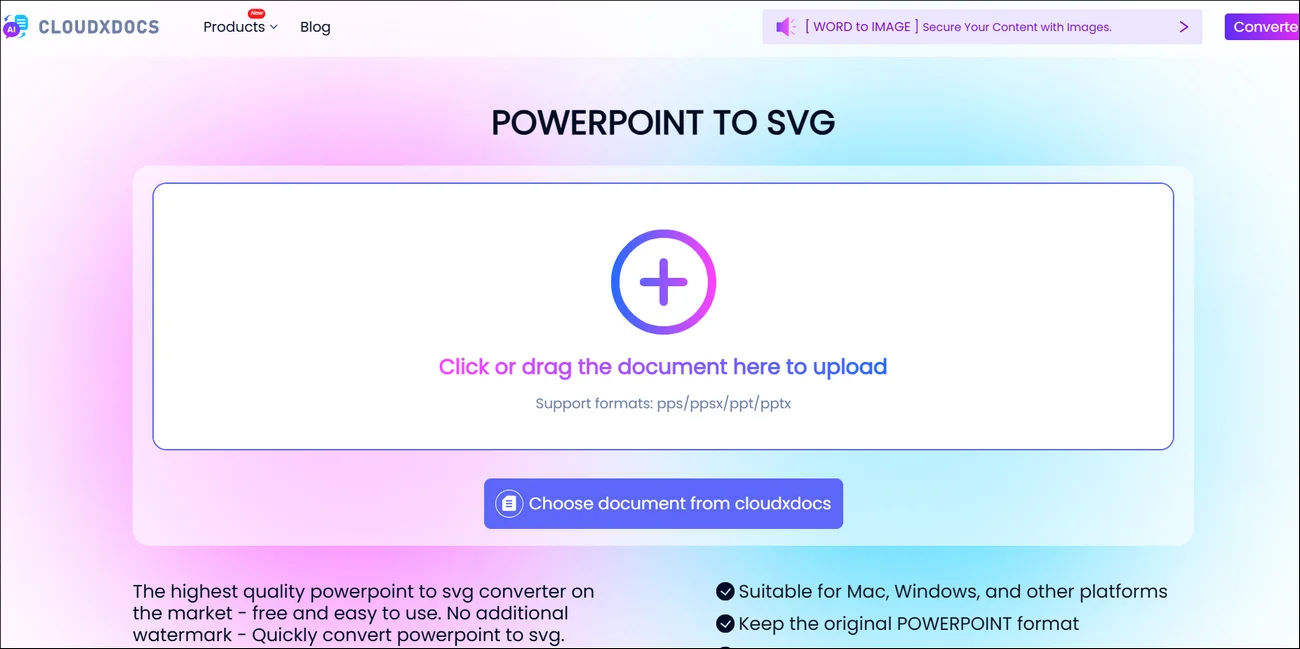
Step 2. Click or drag to upload the original PowerPoint file (.ppt/.pptx) that you’d like to convert. CloudxDocs will begin to analyze the uploaded PowerPoint file for best output.
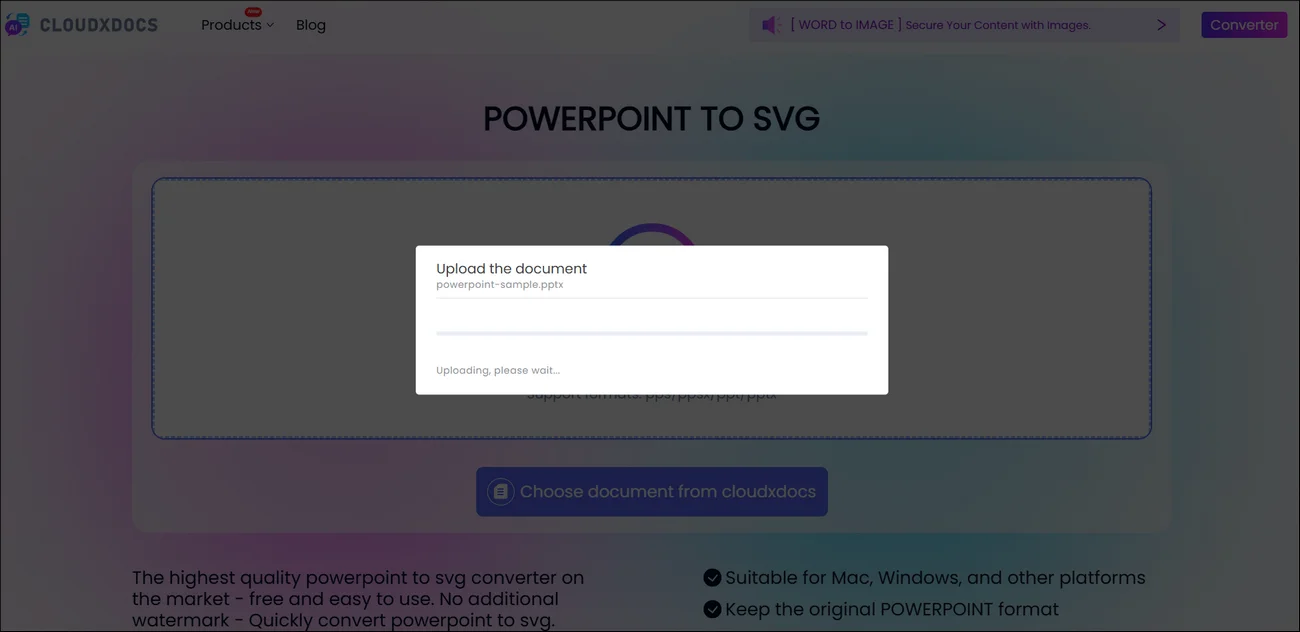
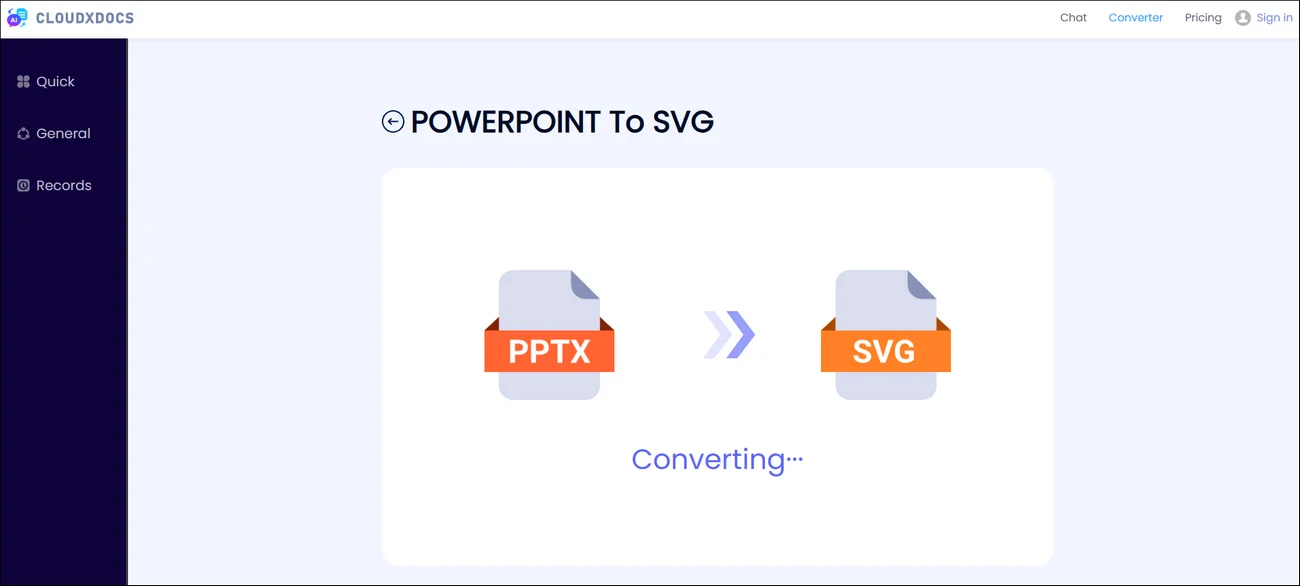
Step 3. CloudxDocs will begin the conversion process automatically after file analysis. Just wait a few seconds as the whole process won’t take much time.
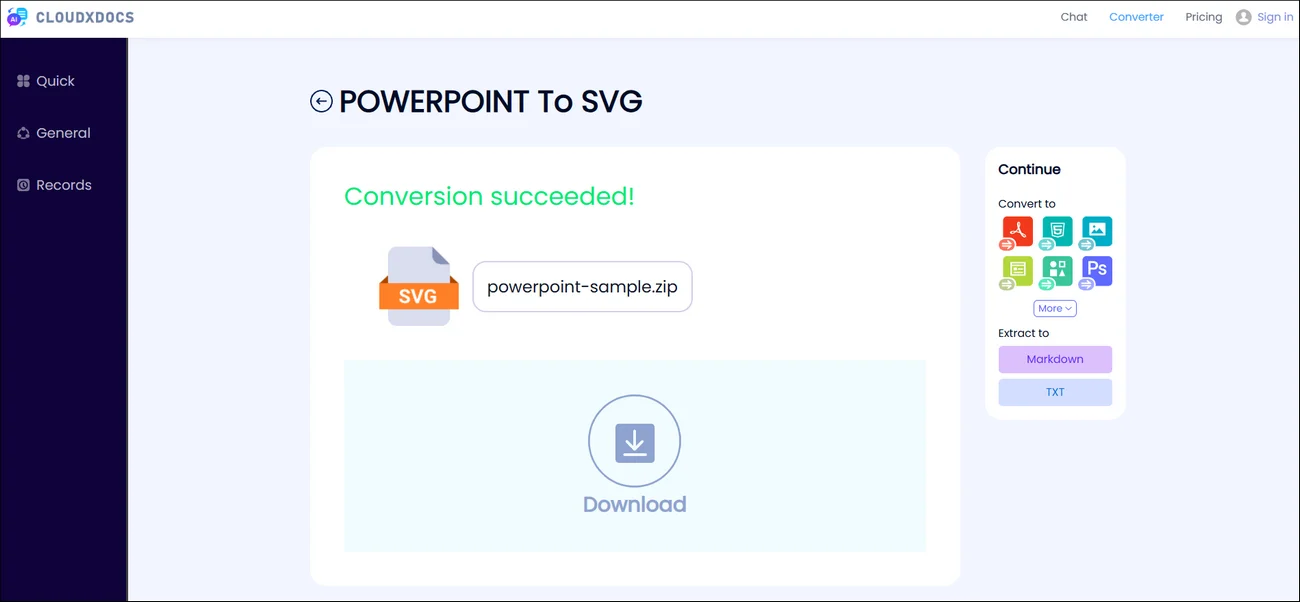
Step 4. After conversion, you can click the “Download“ button to save your SVG file. Then, you can unzip the file folder and check all the converted files.
Method 3. Convert PowerPoint to SVG Programmatically
For developers building scalable systems or needing automation, programmatic conversion is the most powerful approach.
Spire.Presentation for .NET provides a robust API that allows developers to convert PowerPoint slides into SVG format with high fidelity and full control over the process.
Spire.Presentation is a professional PowerPoint API that enables developers to create, read, edit, and convert PPT/PPTX files without relying on Microsoft Office. It is widely used in enterprise applications and backend services.
Sample Code:
1 | using Spire.Presentation; |
To convert PowerPoint files to other image formats, read the tutorial: Convert PowerPoint to Images (PNG, JPG, TIFF, EMF, SVG)
Conclusion
Converting PowerPoint to SVG is a crucial skill for developers, designers, and content creators who want scalable, high-quality graphics for web and application use. By transforming slides into vector format, you ensure that visuals remain sharp on any device, improve web performance, and enable seamless integration with modern front-end workflows.
For occasional or small-scale tasks, manual export via Microsoft PowerPoint or online tools like CloudxDocs provides a quick and accessible solution. CloudxDocs, in particular, combines ease of use, accuracy, and cross-platform accessibility, making it ideal for non-technical users.
For businesses or developers handling large volumes of presentations, programmatic conversion using Spire.Presentation for .NET delivers automation, precision, and full control over the output. By selecting the right method for your needs, you can efficiently convert PowerPoint slides to SVG and incorporate them into responsive websites, design systems, or application interfaces.