Step-by-Step Guide to Excel to XML Conversion for Any Workflow
Excel to XML Conversion: Complete Guide for Accurate Data Exchange
Page Content:
- Reasons to Convert Excel to XML
- Method 1. Convert Excel to XML Using Online Tool
- Method 2. Convert Excel to XML Programmatically for Developers
Excel spreadsheets are widely used for storing structured data, performing calculations, and managing business information. However, when it comes to system integration, data migration, and web-based applications, XML (eXtensible Markup Language) is often the preferred format because it is platform-independent, machine-readable, and ideal for structured data exchange.
As a result, Excel to XML conversion has become an essential task for developers, data analysts, and business users who need to transfer spreadsheet data into databases, enterprise systems, or web services.
In this guide, you will learn what Excel to XML conversion is, why it matters, and the most efficient methods to perform it — including online tools and developer-focused libraries.
Reasons to Convert Excel to XML
In real-world workflows, converting Excel files to XML is rarely done without purpose. Most conversions are driven by practical needs such as system integration, structured data exchange, and automated processing. Below are some common reasons organizations choose this conversion. You can compare them with your own scenarios to see whether this format change is necessary for your work.
1. System Integration Requirements
Many enterprise platforms and development environments natively support XML. Converting Excel data into XML makes it much easier to integrate with ERP systems, CRM platforms, and internal business applications while reducing extra format-mapping efforts.
2. Structured Data Exchange
XML is designed to represent hierarchical data relationships clearly. Compared with flat spreadsheets, XML is more suitable for transmitting structured information through web services, APIs, and cloud-based platforms.
3. Data Migration and System Upgrades
During legacy system upgrades, database consolidation, or cross-platform migration projects, XML often serves as a neutral intermediate format. Converting historical Excel datasets into XML helps ensure smoother and more reliable data transitions.
4. Automation and Batch Processing
Many automation tools, scripts, and data-processing pipelines are built to read XML directly. Converting Excel spreadsheets to XML enables batch processing, scheduled imports, automated reporting, and workflow orchestration.
5. Cross-Platform Compatibility
XML files can be parsed and processed consistently across different operating systems and software environments. Converting Excel data to XML helps prevent compatibility issues caused by platform differences.
Method 1. Convert Excel to XML Using Online Tool
Online conversion tools are a practical choice for users who need fast results without installing software or writing code. Instead of dealing with complex configurations, users can complete file conversion directly in a browser, making the process especially suitable for quick tasks, temporary needs, and non-technical workflows.
Platforms like CloudxDocs make this process even more efficient by providing a streamlined Excel-to-XML conversion experience. Users simply upload spreadsheets and receive structured XML files within seconds, with no technical setup required.
Key advantages of CloudxDocs include:
- No installation required: Entirely browser-based, accessible on any operating system
- Fast processing: Converts Excel files to XML in seconds, even for large spreadsheets
- User-friendly interface: Clean workflow designed for both technical and non-technical users
- Secure file handling: Files are processed in the cloud without complicated local configurations
- Multi-format support: Supports conversions between Excel and various other commonly used document formats including PDF, Image, TXT, Markdown, etc.
How to convert Excel to XML with CloudxDocs Online Excel to XML Converter:
Step 1. Open the CloudxDocs Online Excel to XML Converter in your web browser.
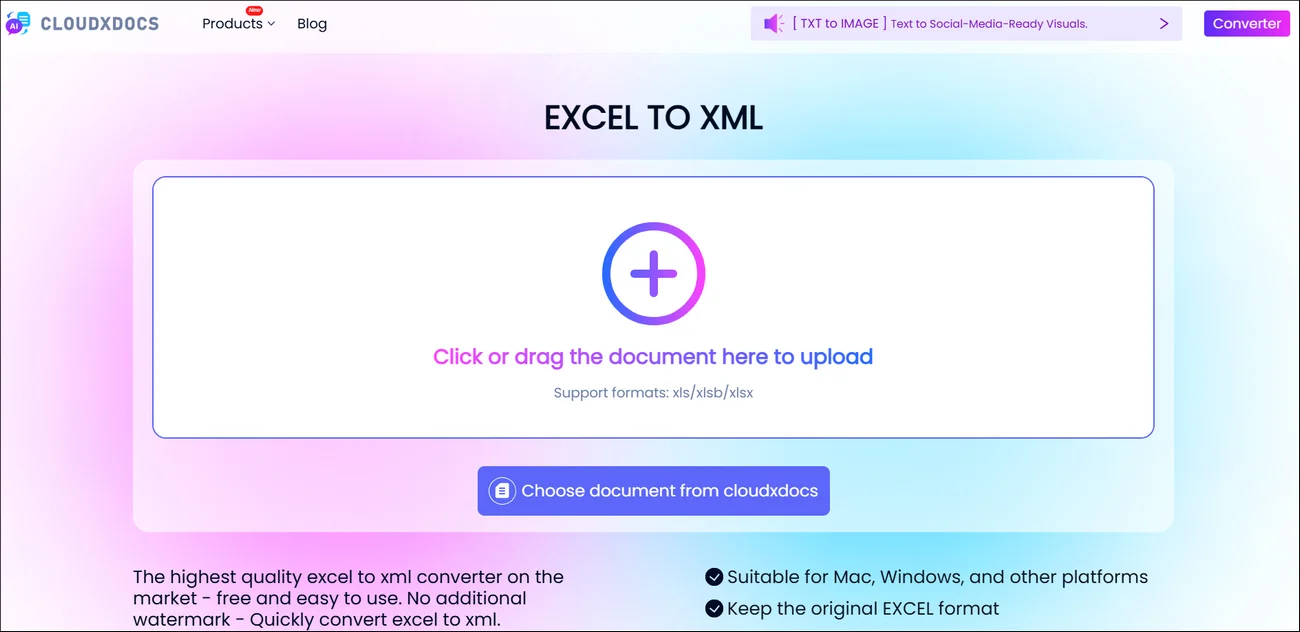
Step 2. Upload your Excel file or drag it into the upload area. Wait for the tool to analyze the spreadsheet structure and begin conversion.
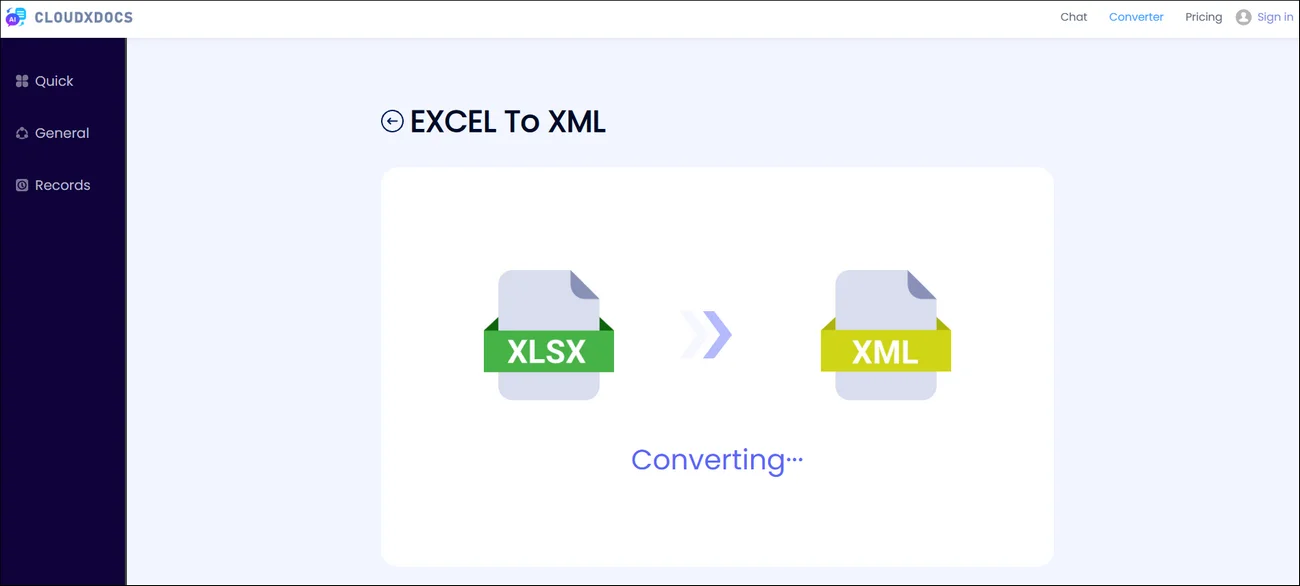
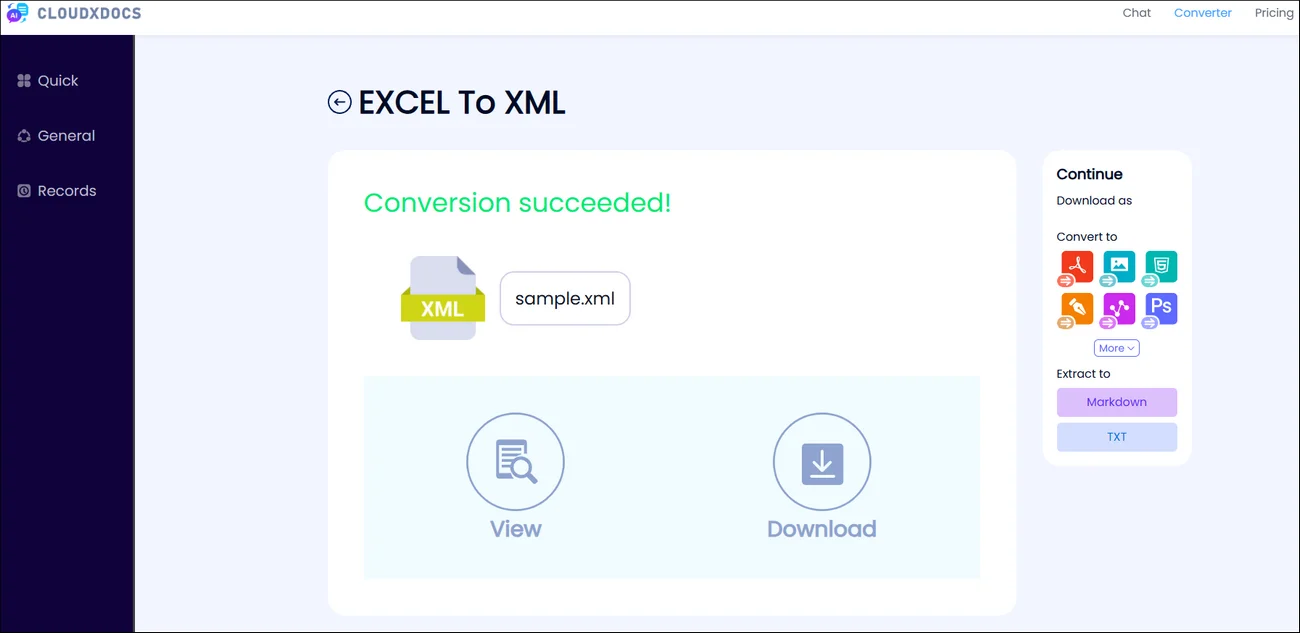
Step 3. Click “Download“ to save the converted XML file after processing is complete.
Method 2. Convert Excel to XML Programmatically for Developers
For users who need greater flexibility, deeper customization, or large-scale automated processing, online tools may not always be sufficient. In scenarios such as enterprise systems, backend services, or applications that require frequent batch conversions, a programmable solution becomes more reliable and efficient. Developer-focused libraries allow Excel data to be processed directly within applications, eliminating manual steps while ensuring better performance, security control, and workflow integration.
In these cases, libraries like Spire.XLS provide a more powerful and flexible approach to Excel-to-XML conversion. Designed for developers, it enables direct manipulation of Excel files through code, making it easier to integrate document processing into business systems and automated pipelines.
Step-by-step tutorial of converting Excel files to XML format with Spire.XLS for .NET:
Step 1. Install the Excel processing library in your development environment by:
- downloading the DDL files from the official link and add as references manually;
- install with NuGet with code below.
1 | PM> Install-Package Spire.XLS |
Step 2. Copy the following code and don’t forget to adjust file location and file name according to your specific situation.
Sample Code:
1 | using Spire.Xls; |
A more detailed Excel to XML conversion and vice versa tutorial here: Convert Excel to Open XML or Open XML to Excel
Wrap-Up
Excel to XML conversion is a practical solution for improving data interoperability, enabling structured data exchange, and supporting automated workflows across modern business systems. It helps transform spreadsheet data into a format that is easier to integrate, transmit, and manage.
Whether you rely on online converters for convenience or developer libraries for large-scale automation, choosing the right approach ensures smoother data migration, better system compatibility, and more efficient processing.