Excel to Markdown Table: Convert Excel Data to Markdown Easily
Excel to Markdown Table: The Complete Guide for Developers and Content Creators
Content Preview:
- What Is a Markdown Table
- Why Convert Excel to Markdown Tables
- Method 1. Manually Convert Excel to Markdown Table
- Method 2. Convert Excel to Markdown Table Using An Online Tool
Markdown has become the preferred writing format for developers, technical writers, and content creators. It is widely used in documentation, README files, knowledge bases, and static websites. However, many users store their data in Excel spreadsheets. When preparing documentation, they often need to convert spreadsheet data into Markdown tables.
If you have ever tried to manually recreate a table from Excel in Markdown, you know it can be time-consuming and error-prone. Fortunately, there are several efficient ways to convert an Excel to Markdown table, whether you prefer manual methods, online tools, or automated solutions.
In this guide, we will explore different approaches to help you convert Excel spreadsheets into Markdown tables quickly and efficiently.
What Is a Markdown Table
A Markdown table is a lightweight way to present structured data using plain text formatting. It uses a simple row-and-column syntax that is easy to read in raw text and automatically rendered into clean tables on most modern platforms. Because of this simplicity and compatibility, Markdown tables are widely used in developer-focused environments such as GitHub repositories, technical documentation systems, knowledge bases, and API reference pages.
A typical Markdown table looks like this:
1 | | Name | Language | Platform | |
In this structure, each column is separated by a vertical bar (|), while the header row is defined by a separator line made of hyphens (-). This syntax ensures consistent alignment and allows Markdown parsers to correctly render the table layout.
Markdown tables are especially useful for presenting product comparisons, feature lists, configuration parameters, pricing tiers, and other structured datasets in technical content. However, while creating small tables manually is straightforward, converting large Excel spreadsheets into Markdown format can quickly become time-consuming and error-prone without efficient conversion methods or specialized tools.
Why Convert Excel to Markdown Tables
Excel is ideal for organizing and processing structured data, while Markdown is better for publishing and sharing it online. Converting Excel tables to Markdown helps teams streamline documentation workflows, improve collaboration, and make structured data easier to display across platforms.
1. Documentation and README Files
Platforms like GitHub use Markdown as the default documentation format. Converting Excel tables allows structured data such as feature lists, comparison charts, and configuration tables to be embedded directly into project documentation.
2. Technical Writing and Knowledge Bases
Technical writers often organize specifications, API parameters, and test data in Excel. Converting them to Markdown ensures smooth publishing in modern documentation systems while keeping content clear and structured.
3. Static Website Content
Static site generators such as Hugo, Jekyll, and Docusaurus rely on Markdown files. Converting Excel tables makes it easy to integrate structured data into web pages without complex backend systems.
4. Developer Collaboration and Version Control
Markdown tables are plain text, making them easier to store in version control systems than Excel files. This helps developers share data, track changes, and collaborate more efficiently.
5. Cross-Platform Publishing
Markdown renders consistently across documentation platforms, CMS systems, and developer tools. Converting Excel data ensures better portability and fewer formatting issues.
Method 1. Manually Convert Excel to Markdown Table
Pros:
- No additional tools required
- Works for small tables
Cons:
- Time-consuming for large datasets
- Easy to make formatting mistakes
One of the simplest ways to convert Excel data into a Markdown table is to handle the process manually. By copying the data from an Excel spreadsheet and restructuring it using Markdown table syntax, users can quickly create clean and readable tables for documentation or online publishing. This process typically involves adding column separators, defining header rows, and adjusting alignment formatting.
While manual conversion does not require any additional tools, it works best for smaller datasets and straightforward table structures. It is a practical option for users who need fast results or prefer having full control over table formatting.
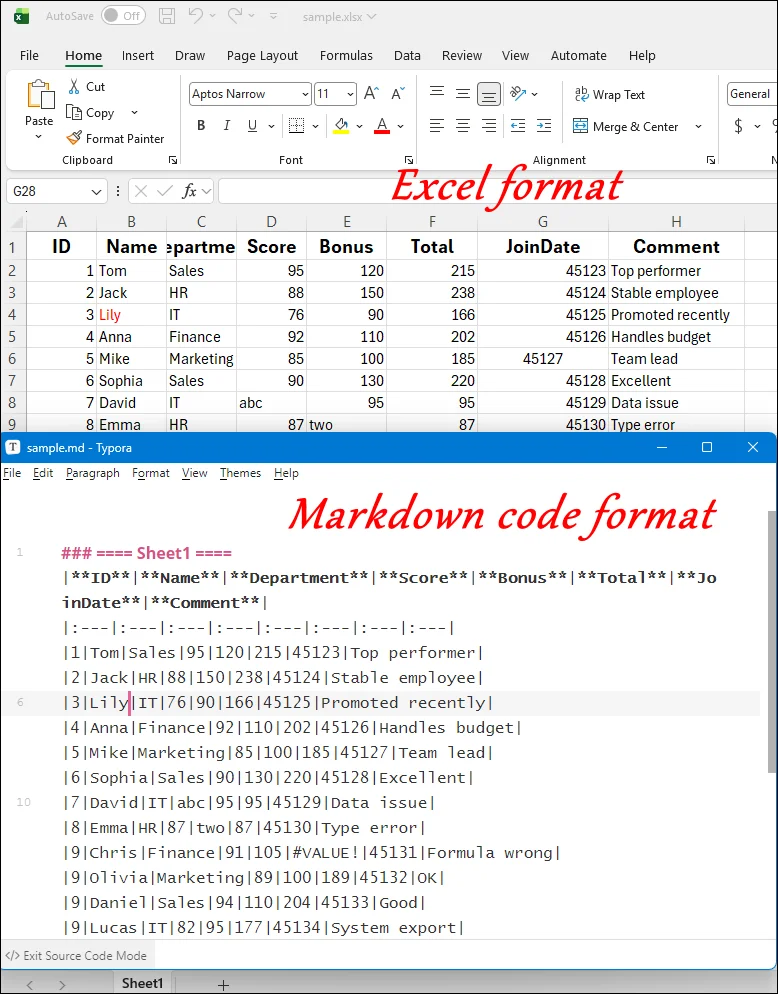
Step-by-step tutorial of converting Excel files to Markdown format manually:
Step 1. Open the Excel spreadsheet that contains the table you want to convert.
Step 2. Copy the table data and paste it into a Markdown editor, such as Notepad or Typora.
Step 4. Insert vertical bars (|) between columns so the data matches Markdown table syntax.
Step 5. Add a header separator line using dashes (---) beneath the header row.
Example:
Notes for Manually Converting Excel to Markdown
- Use Simple Table Structures: Avoid merged cells and complex layouts that Markdown cannot display properly.
- Keep Columns Properly Aligned: Add correct separator rows (—) and maintain consistent spacing for accurate rendering.
- Remove Unsupported Content: Delete formulas, special symbols, and extra line breaks since Markdown supports plain text only.
- Review Formatting Carefully: Check for missing separators or misaligned columns to ensure the table displays correctly.
Method 2. Convert Excel to Markdown Table Using An Online Tool
Pros:
- Instant and accurate conversion
- No coding or manually editing required
- Ideal for quick tasks
Using an online converter is the most convenient way to transform Excel data into Markdown tables. Instead of manually adjusting table structures and Markdown syntax, users can simply upload a spreadsheet or paste table content into a web-based tool to generate properly formatted Markdown code in seconds. This approach minimizes manual work and reduces formatting errors.
Online converters are ideal for users who want quick results without installing additional software, especially when preparing tables for documentation, blogs, or knowledge bases. Tools like CloudxDocs offer a streamlined and user-friendly experience, making Excel-to-Markdown conversion fast and effortless.
Reasons to pick CloudxDocs Online Converter:
- Fully Online Conversion Platform: Fully web-based service that works directly in your browser, eliminating the need for software downloads or installation on any device.
- Extensive Multi-Format Conversion Support: Supports a wide range of conversions, including PDF to Word, Word to images, PowerPoint to PDF, JPG to PDF, and more.
- Simple Operation with Fast, High-Quality Results: User-friendly interface with straightforward steps, delivering fast processing speed while maintaining accurate formatting and high-quality results.
- Strong Security and Privacy Protection: Uploaded files will be automatically deleted within 24 hours after conversion to protect users’ privacy.
Full steps of using CloudxDocs to convert an Excel file to Markdown table:
Step 1. Open the official website of CloudxDocs Online Excel to Markdown Converter.
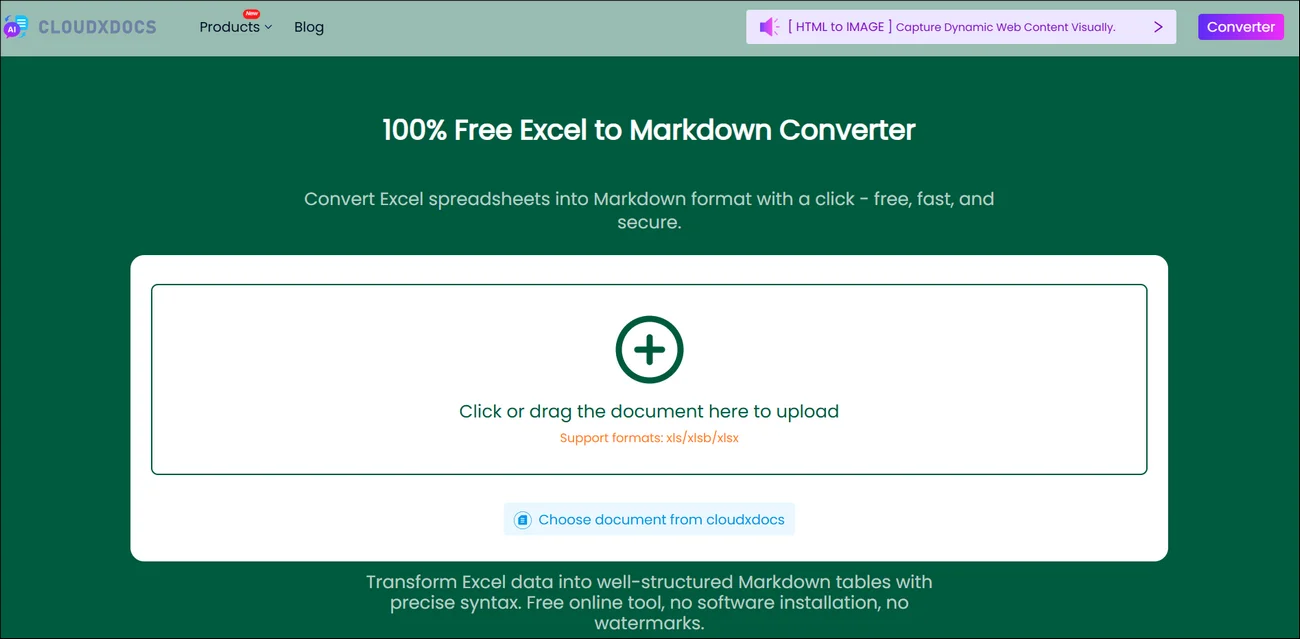
Step 2. Click or directly drag to upload your original Excel files to the website and wait for its automatic file analysis. After that, it will begin the conversion process immediately.

Step 3. After the conversion is completed, you can click the “Download“ button and save the converted Markdown file to your computer.

FAQs
1. Can Markdown tables preserve Excel formatting?
Not completely. Markdown tables support basic rows and columns but do not support advanced Excel features such as merged cells, formulas, conditional formatting, charts, or multiple sheets. Complex layouts usually need simplification before conversion.
2. What is the easiest way to convert Excel to Markdown?
Online tools are especially convenient because they require no installation.
3. Will large Excel files cause problems during conversion?
Yes. Large tables may lead to formatting errors, slow processing, or readability issues. In Markdown, very wide tables may not display properly on smaller screens, so splitting them into multiple tables is recommended.
Final Thoughts
Converting an Excel to Markdown table doesn’t have to be complicated. Whether you choose manual formatting for small tables or use online tools for faster and more accurate results, the right method depends on your workflow and project size. Manual conversion offers full control, while online converters significantly reduce effort and formatting errors, making them ideal for documentation, technical writing, and web publishing.
If you frequently work with structured data, choosing an efficient Excel-to-Markdown conversion tool like CloudxDocs can save valuable time and ensure clean, professional documentation across platforms.