Convert HTML to XML Faster with Online Tools and Code
How to Convert HTML to XML Without Breaking the Structure
Page Content:
- Differences Between HTML and XML Format
- Method 1. Save HTML Files into XML Format with CloudxDocs Online Converter
- Method 2. Save HTML file to XML Format Programmatically
Converting HTML to XML is a common requirement in modern data processing workflows. While HTML is designed for displaying content in browsers, XML focuses on storing and transporting structured data in a consistent and machine-readable format.
Whether you’re working on data integration, content transformation, or backend processing, understanding how to convert HTML to XML can significantly improve your workflow efficiency.
Differences Between HTML and XML Format
Understanding the differences between HTML and XML helps clarify why one is used for presentation while the other is designed for structured data exchange. Although they both use markup syntax, their purposes and rules are fundamentally different.
Before looking at the detailed comparison, keep in mind this simple idea: HTML is about how data looks, while XML is about what data means.
Key differences between HTML and XML:
| HTML | XML | |
|---|---|---|
| Purpose | Display content | Store and transport data |
| Tags | Predefined | Custom-defined |
| Syntax | Flexible | Strict |
| Tag Closing | Optional (some tags) | Required for all tags |
| Structure | Presentation-focused | Data-focused |
| Error Handling | Tolerant | Not tolerant |
| Usage | Web pages | Data exchange |
Method 1. Save HTML Files into XML Format with CloudxDocs Online Converter
Pros:
- Simple and easy to use, no technical background required
- Quick conversion for small to medium-sized files
- No need to set up a development environment
Cons:
- Limited customization of output structure
- May not handle highly complex or malformed HTML perfectly
- Potential concerns with data privacy for sensitive content
After understanding the structural differences between HTML and XML, the next step is choosing the right conversion method. For users who prefer a quick and code-free approach, online tools are often the most convenient option.
One practical solution is CloudxDocs, an online document processing platform that allows you to convert HTML files into structured XML with minimal effort.
Key Features of CloudxDocs:
- Supports multiple document formats, including RTF to Word, PDF to PostScript, HTML to Word, etc.
- No installation required — fully browser-based
- Fast processing with clean and structured output
- User-friendly interface suitable for non-developers
- Accessible across different devices and operating systems
Main steps of using CloudxDocs are listed below:
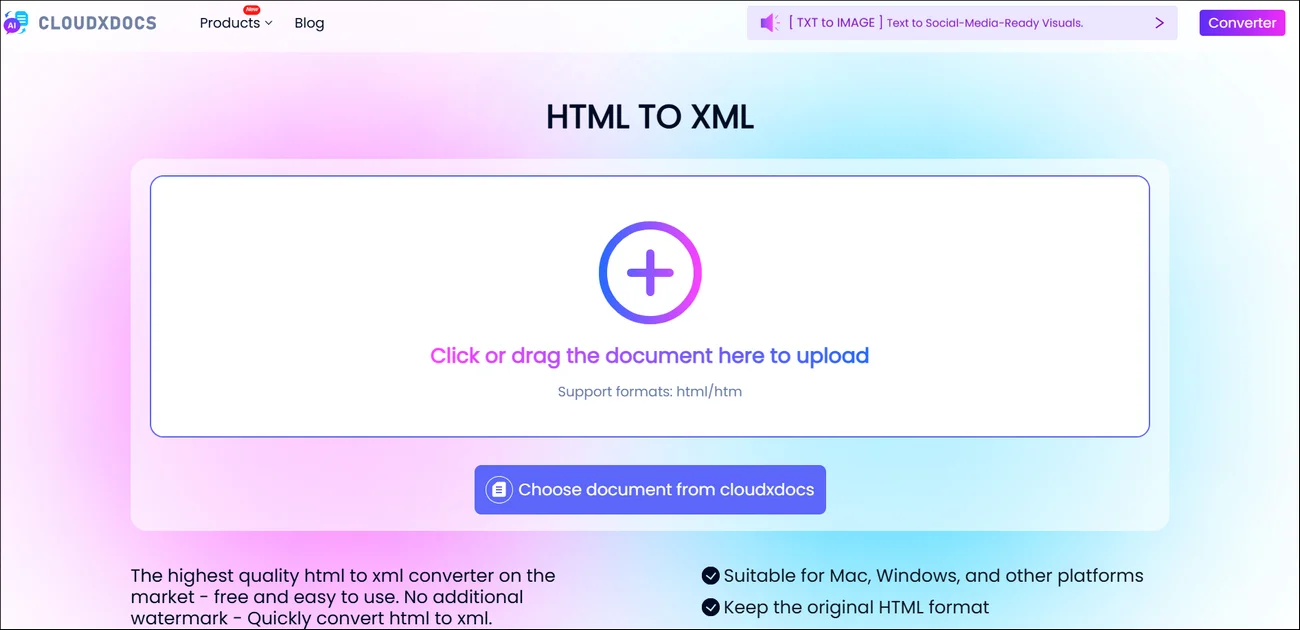
Step 1. Open the official website of CloudxDocs Online HTML to XML Converter on any browser on your computer.
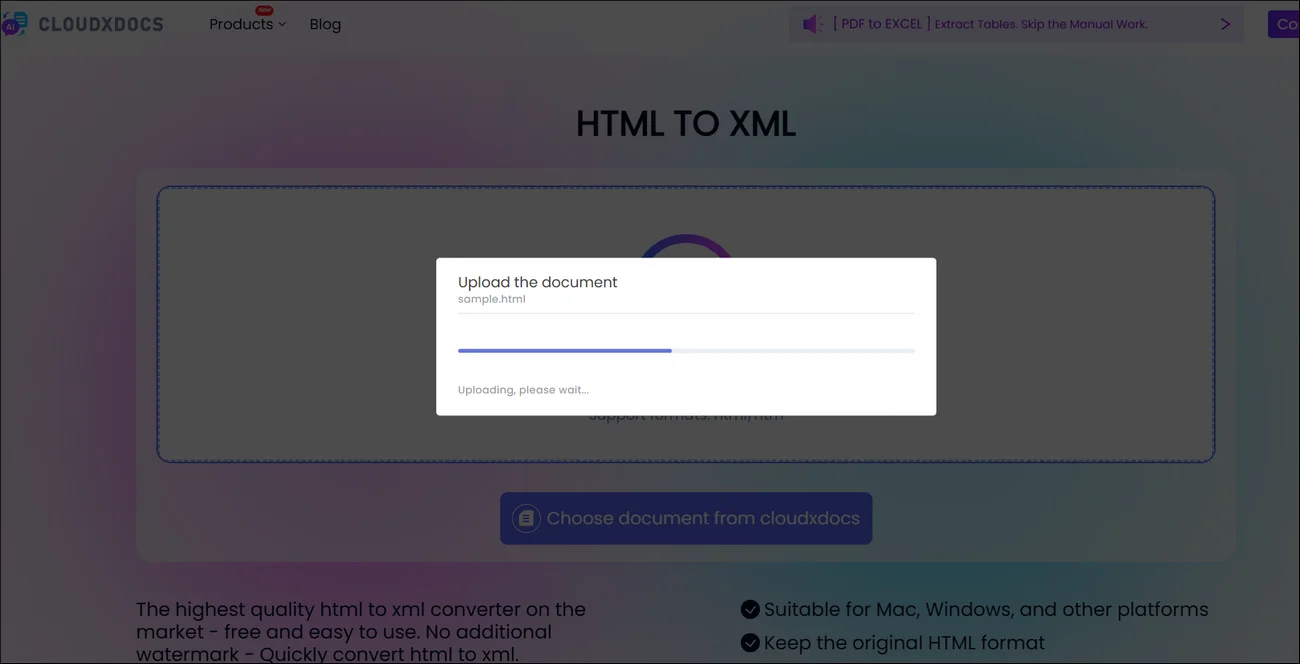
Step 2. Click or drag to upload your HTML file and wait for CloudxDocs automatic file analysis.
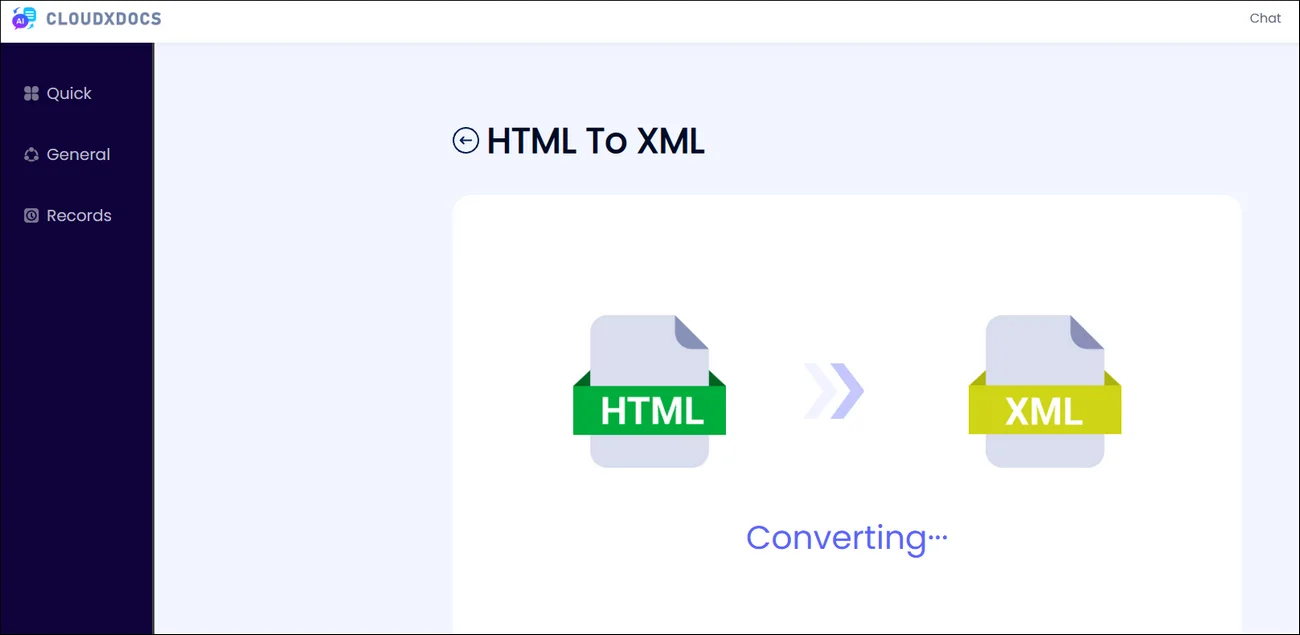
Step 3. CloudxDocs will start conversion process right after the file analysis. The whole process won’t take much time, so you just need to wait for seconds.
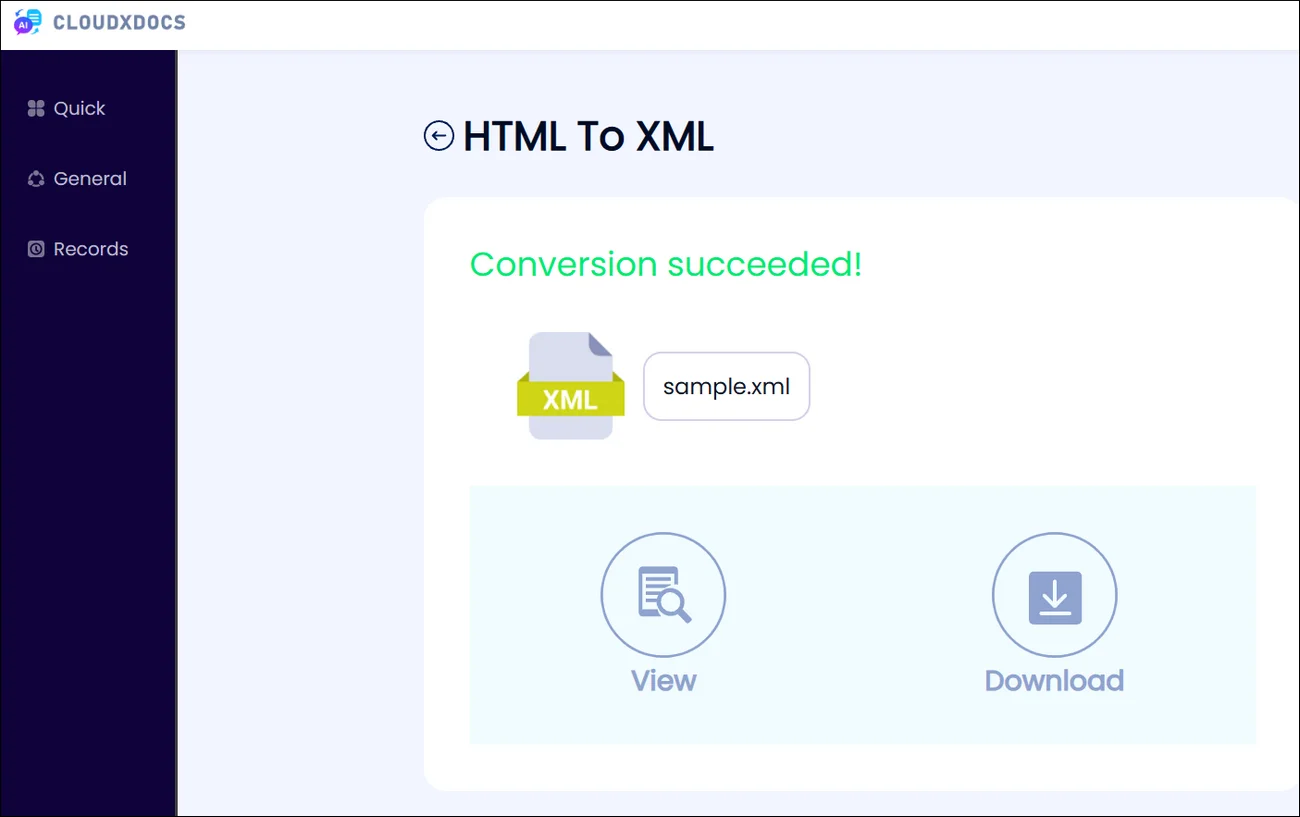
Step 4. After conversion, download the converted XML file and save it to your computer.
Method 2. Save HTML file to XML Format Programmatically
Pros:
- Full control over parsing and output structure
- Suitable for large-scale and automated workflows
- Can handle complex or inconsistent HTML more reliably
- Easy integration into backend systems
Cons:
- Requires programming knowledge
- Initial setup and implementation take more time
- May introduce additional dependencies
While online tools are convenient, they may not be suitable for more advanced or large-scale scenarios. When you need full control over the conversion process, a programmatic approach becomes the better choice.
Libraries such as Spire.Doc for .NET provide developers with the ability to process and convert document content efficiently within applications. This method is especially useful for automation, batch processing, and integration into existing systems.
Full integration of how to use Spire.Doc to convert HTML file to XML format:
Step 1. Add Spire.Doc as your references in your C# project. You can download it from its official website or install directly with NuGet.
1 | PM> Install-Package Spire.Doc |
Step 2. Copy the following code and don’t forget to change the file location according to your specific scenario:
Sample Code:
1 | using Spire.Doc; |
Convert your original files to other formats with Spire.Doc for .NET: C#: Convert HTML to PDF, XPS and XML.
Final Words
Converting HTML to XML is an essential step in many data processing and integration workflows. Since HTML focuses on presentation and XML emphasizes structured data, transforming between the two often requires careful handling of syntax and structure.
By understanding their differences and selecting the right conversion method—whether a quick online tool or a more robust developer solution—you can significantly improve both efficiency and data consistency in your projects.