How to Save a Word Document as EPUB: A Complete Step-by-Step Guide
How to Save a Word Document as EPUB
Page Content:
- Differences Between Word and EPUB File
- Why Convert Word to EPUB Format
- 3 Effective Methods of Saving Word Files in EPUB Format
Word documents are widely used for writing and editing content, but when it comes to distributing E-books or reading on mobile devices and e-readers, EPUB is often the preferred format. EPUB files are lightweight, responsive, and designed specifically for digital reading.
In this guide, you’ll learn what makes EPUB different from Word, why converting Word to EPUB is useful, and how to save a Word document as an EPUB file using practical methods.
Differences Between Word and EPUB File
Before learning how to convert a Word document to EPUB, it’s essential to understand the fundamental differences between these two formats. Word and EPUB are optimized for different scenarios, and these distinctions play an important role in how documents are read and shared.
1. File Purpose and Usage
- Word (.doc/.docx) files are primarily designed for content creation and editing. They are commonly used in offices, schools, and collaborative environments.
- EPUB (.epub) files are designed for digital publishing and reading. They are widely supported by e-readers, mobile devices, and E-book platforms like Kindle.
2. Layout and Responsiveness
- Word documents use a fixed layout, where text, images, and tables are positioned based on page size and margins.
- EPUB files use a reflowable layout, meaning text automatically adjusts to different screen sizes, font settings, and orientations.
3. Compatibility
- Word files require compatible software such as Microsoft Word, WPS, or LibreOffice.
- EPUB files can be opened on e-readers (Kindle with conversion, Kobo), mobile apps, tablets, and browsers with EPUB readers.
4. File Structure
- Word files are stored as single, fully editable documents, making them easy to modify in word processing software.
- EPUB files are ZIP-based packages made up of XHTML, CSS, and metadata, offering more flexibility for publishing but less convenient for direct editing.
Why Convert Word to EPUB Format
When content moves beyond drafting and into digital publishing, the limitations of Word become more apparent. Converting a Word document to EPUB unlocks a range of advantages, especially when your content is meant for digital distribution.
Here, we have listed several main reasons why users convert a Word document to EPUB format:
- Ideal for E-books and Digital Publishing: EPUB is the standard e-book format, offering better readability for novels, manuals, tutorials, and documentation.
- Better Reading Experience: EPUB supports flexible fonts, screen adaptation, and accessibility features for more comfortable reading.
- Smaller File Size: EPUB files are usually smaller than Word documents, making them easier to store and share.
- Cross-Platform Support: EPUB works across most devices and platforms, minimizing compatibility issues.
- Automation and Integration: Programmatic Word-to-EPUB conversion supports scalable publishing and documentation workflows.
3 Effective Methods of Saving Word Files in EPUB Format
Now that we’ve explored the key differences between Word and EPUB formats, as well as the reasons for converting between them, the next step is understanding how the conversion can be done in practice.
Below are three practical methods for converting a Word document to EPUB, each suited to different user needs and workflows.
Method 1. Convert Word to EPUB with Online Converter
Advantages:
- No software installation required
- Works directly in the browser
- Ideal for non-technical users and quick conversions
Best for:
Content creators, marketers, and users who need fast Word-to-EPUB conversion without coding.
The first method to introduce is to use an online file format converter like CloudxDocs. CloudxDocs is a web-based file format conversion tool designed to help users quickly convert documents without installing any software. It runs directly in the browser, making it convenient for users who need a simple and accessible way to handle document format changes.
Here are some unique features to help you choose CloudxDocs:
- Wide Format Support: Supports common formats conversion including Word to PDF, CSV to Excel, HTML to Markdown, PDF to SVG, etc.
- Simple Conversion Workflow: Upload a document, choose an output format, and download the converted file in a few steps.
- Content Integrity Preservation: Maintains the original structure, text, and basic formatting during conversion.
- Cross-Platform Accessibility: Works across different devices and operating systems through a web browser.
Full steps of using CloudxDocs Online Word to EPUB Converter are listed below:
Step 1. Open your browser and go to the official site of CloudxDocs Online Word to EPUB Converter.
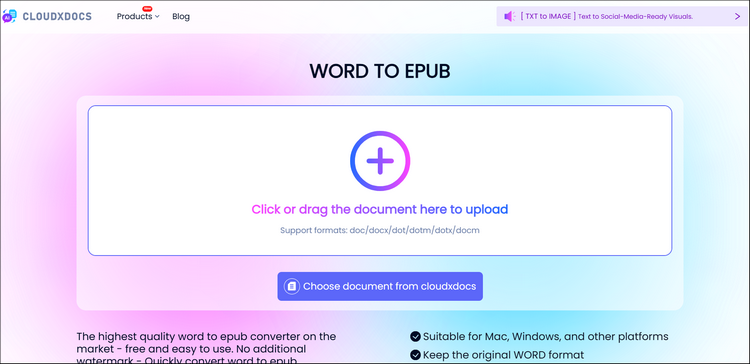
Step 2. Click or drag to upload the original Word files for smooth conversion.
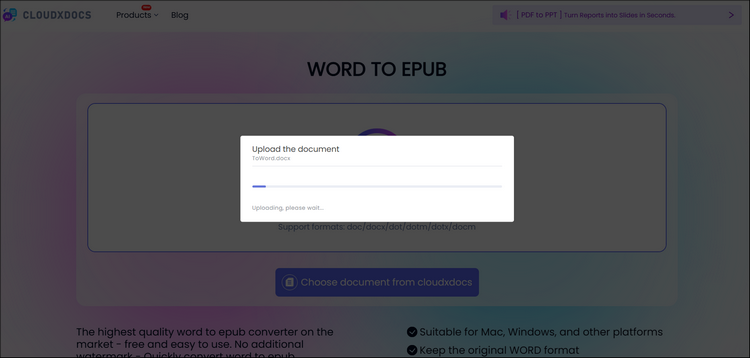
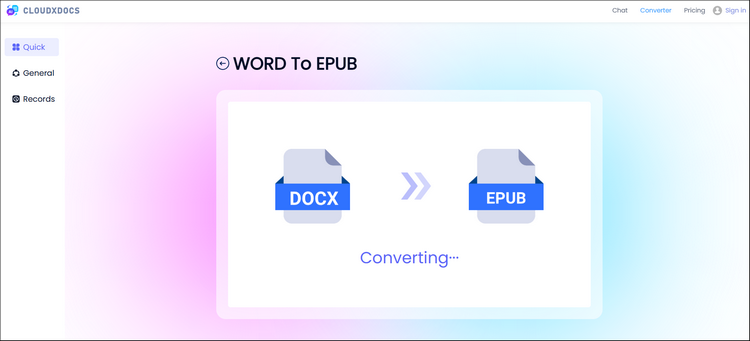
Step 3. CloudxDocs will immediately begin to analyze your uploaded Word file and start the conversion automatically.
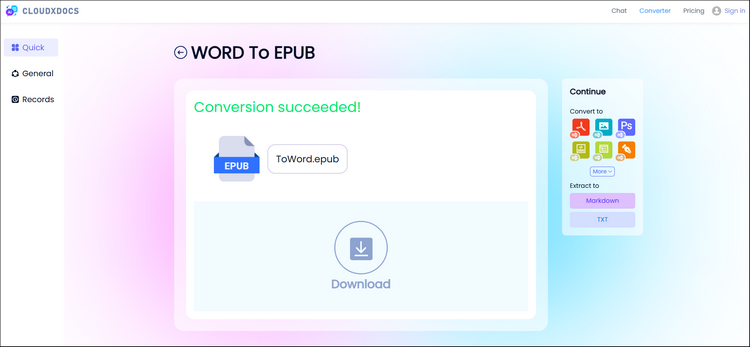
Step 4. Just wait for seconds and now you can download the converted EPUB file and save it to your local file location.
Method 2. Convert Word to EPUB Programmatically
Advantages:
- High conversion accuracy
- Supports batch processing
- Suitable for backend services and automation
Best for:
Developers building document processing systems, publishing platforms, or automated conversion pipelines.
For developers who require greater control over the conversion process, an online tool may not always be sufficient. When personalized formatting, automated workflows, or deeper integration with existing systems is needed, implementing Word-to-EPUB conversion through C# code becomes a more flexible option.
In such cases, Spire.Doc for .NET provides a reliable solution, allowing developers to programmatically load Word documents, adjust document settings, and export them to EPUB format with precision.
The example C# code is shown below:
1 | using Spire.Doc; |
For a more detailed tutorial of converting Word files to EPUB format, you can read the following post:
How to Convert Word to EPUB Using C#
Method 3. Convert Word to EPUB Using Third-Party Tool with Manual Workflow
Advantages:
- Free and open-source
- Powerful EPUB editing and management features
- Good control over metadata, table of contents, and layout
Best for:
Authors, self-publishers, and advanced users who want fine-grained control over EPUB structure and are comfortable with a manual workflow.
Calibre is a popular open-source e-book management tool that supports converting documents between multiple eBook formats, including Word to EPUB. While Calibre does not directly convert DOC/DOCX to EPUB with perfect results in all cases, it works well when combined with an intermediate format such as DOCX-cleaned HTML or PDF.
Recommended steps to convert Word to EPUB with Calibre:
Step 1. Before conversion, clean up the Word file for smoother conversion by:
- Using the built-in Word styles (Heading 1, Heading 2, etc.) for chapters and sections
- Removing unnecessary spacing, text boxes, or complex layouts
- Saving the file as DOCX
Step 2. Download and install Calibre from its official website, then launch the application.
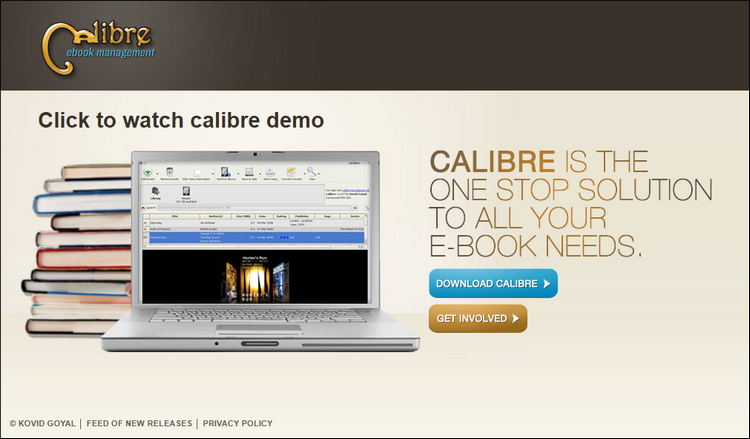
Step 3. Click “Add books“ and select your DOCX (or HTML/PDF) file to add your Word file. The document will appear in your Calibre library.
Step 4. Select the added file, click “Convert books“ and then choose “EPUB“ as the output format.
Step 5. After conversion, you can use Calibre’s “Edit book“ or “View “ feature to fix formatting issues, adjust CSS styles, and ensure compatibility across different e-Readers.
Step 6. The last step, right-click the book and choose “Save to disk“ to export the final EPUB file.
Notes and limitations:
- Complex Word layouts (tables, multi-column text, floating images) may require manual adjustments after conversion
- Conversion accuracy depends heavily on how well the original Word document is structured
- Not ideal for fully automated or large-scale batch processing
Conclusion
Converting Word documents to EPUB helps make content more suitable for digital reading, offering better compatibility, flexibility, and readability across devices and e-readers.
Whether you choose an online converter for speed, a programmatic solution for automation, or a manual tool like Calibre for greater control, the right method will ensure your content is ready for effective eBook distribution.
FAQs
1. Can Microsoft Word save files directly as EPUB?
No. Microsoft Word does not natively support exporting documents directly to EPUB format.
2. Will formatting be preserved when converting Word to EPUB?
Basic formatting such as headings, paragraphs, and images is usually preserved. However, complex layouts may require adjustment due to EPUB’s reflowable nature.
3. Is EPUB better than PDF for e-books?
Yes, EPUB is generally better for e-books because it supports responsive layouts and accessibility features, while PDFs use fixed layouts.