A Complete Guide to Converting RTF to Word in 3 Ways
3 Practical Ways to Convert RTF to Word for Different Workflows
Different Methods Comparison:
| Method | Best For | Advantages | Limitations |
|---|---|---|---|
| Microsoft Word | Occasional use | Easy to use, accurate results | Manual only, no batch support |
| CloudXDocs (Online) | Quick online tasks | No install, fast and convenient | Internet required, limited control |
| C# + Spire.Doc for .NET | Automation & enterprise | Automated, scalable, consistent output | Requires coding, license for production |
Rich Text Format (RTF) is a widely supported document format designed to ensure cross-platform compatibility and basic text styling. While RTF files can be opened by many editors, Microsoft Word documents (DOC/DOCX) remain the industry standard for editing, collaboration, and distribution. As a result, converting RTF to Word is a common requirement in business workflows, document migration projects, and automated processing systems.
In this article, we will explore multiple practical ways to convert RTF to Word, ranging from Microsoft Word built-in tool to online converters and programmatic solutions. By the end, you’ll be able to choose the method that best fits your technical needs and usage scenarios.
RTF vs. Word Format: Key Differences You Should Know
Before choosing a conversion method, it’s important to understand what changes when you convert an RTF file to a Word document. Although both formats store formatted text, they are built on different structures and support different levels of functionality.
These differences directly affect layout accuracy, feature availability, and long-term document usability:
- File structure: TF is a plain-text format that can be opened in a text editor, making it simple and portable. DOC uses a binary structure, while DOCX is XML-based and packaged in a ZIP container, offering more advanced features but not human-readable.
- Feature support: RTF supports basic formatting and simple elements, while DOC/DOCX includes advanced features like styles, track changes, comments, and document protection, making it better for professional and collaborative use.
- File size and efficiency: RTF files are typically larger because they are not compressed. DOCX uses ZIP compression, making it more storage-efficient, especially for large or image-heavy documents.
- Compatibility and portability: RTF offers strong cross-platform compatibility. DOCX is widely supported but works best in Microsoft Word, where advanced features are fully preserved.
When Should You Convert RTF to Word?
Now that we’d looked at the key differences between RTF and Word formats, the practical question becomes: when does it actually make sense to convert an RTF file to Word? In many real-world workflows, RTF’s simplicity becomes a limitation rather than an advantage.
You should consider converting RTF to Word when:
- When you need advanced formatting, precise layout control, or a more complex document structure
- When collaboration features such as comments and track changes are required
- When the document is part of a professional, academic, or enterprise workflow
- When security features like document protection or restricted editing are necessary
At this point, you should have a clear understanding of the differences between RTF and Word formats, as well as the practical scenarios where conversion makes sense. Next, we’ll walk through three efficient ways to manage the conversion.
Method 1. Convert RTF to Word Using Microsoft Word
Pros:
- No additional tools required
- High layout fidelity
- Simple and intuitive
Cons:
- Not suitable for batch conversions
- Requires Microsoft Word installation
If you only need to convert a few RTF files and prefer a straightforward, visual approach, using Microsoft Word is the most direct solution. Since Word natively supports RTF format, the conversion process is simple and usually preserves layout and formatting with high accuracy. This method is ideal for individual users or small-scale tasks where manual review is acceptable.
Full steps of using Microsoft Word to convert RTF to Word format:
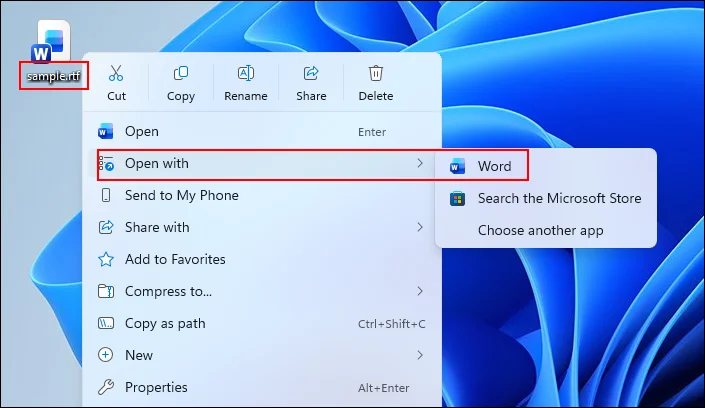
Step 1. Right-click the .rtf file from your computer. Choose “Open with“ and click Microsoft Word to open it.
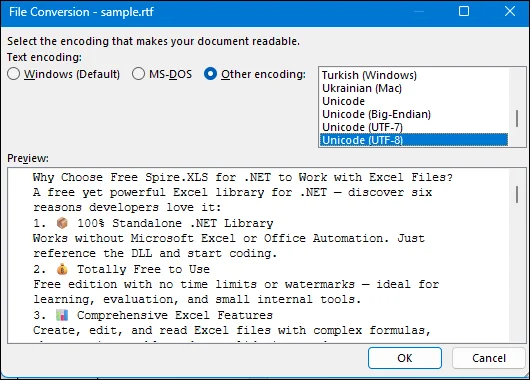
Step 2. A small window will pop out for you to choose the encoding method to make the .rtf file readable. “Unicode (UTF-8)“ is OK.
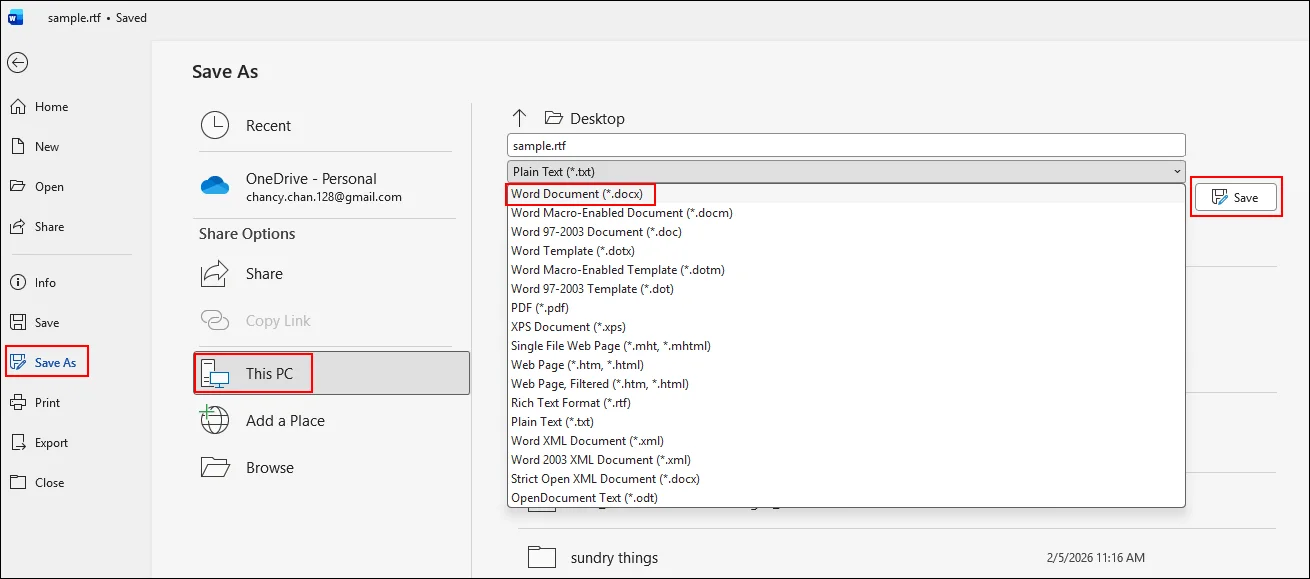
Step 3. Then, you can use the built-in “Save as“ feature to convert the RTF files to the Word format easily.
Method 2. Convert RTF to Word Online Using CloudXDocs
Pros:
- No local installation
- Fast and easy to use
- Works on any device with a browser
Cons:
- Requires an internet connection
- Limited customization
- Not ideal for sensitive or confidential documents
If you prefer not to install desktop software or implement programmatic solutions, using an online converter can be a practical alternative, especially for occasional or small-scale conversion needs. Online tools allow you to complete the process directly in your browser with minimal effort.
Among these options, CloudxDocs stands out as a simple and reliable choice. It enables you to upload your RTF file and download a fully formatted Word document within seconds, offering a smooth and efficient conversion experience without any setup or technical barriers.
Unique features of why you choose CloudxDocs:
- Fast and Reliable Results: Convert documents with high accuracy while maintaining original layout, fonts, and formatting for professional-quality output.
- Completely Online: Work directly in your browser without installing software or configuring complex tools.
- Broad Format Compatibility: Handle multiple file types and conversions, such as PDF to Word, PDF to Image, Word to PDF, Excel to PDF, and HTML to PDF, all in one place.
- Secure Processing: Keep your files protected with encrypted transmission and automatic deletion in 24 hours after conversion.
CloudxDocs is especially useful when you need immediate results or want to verify formatting before implementing a more complex conversion pipeline.
How to use CloudxDocs to convert RTF files to Word format online:
Step 1. Open the official website of CloudxDocs Online RTF to Word Converter on your browser first.
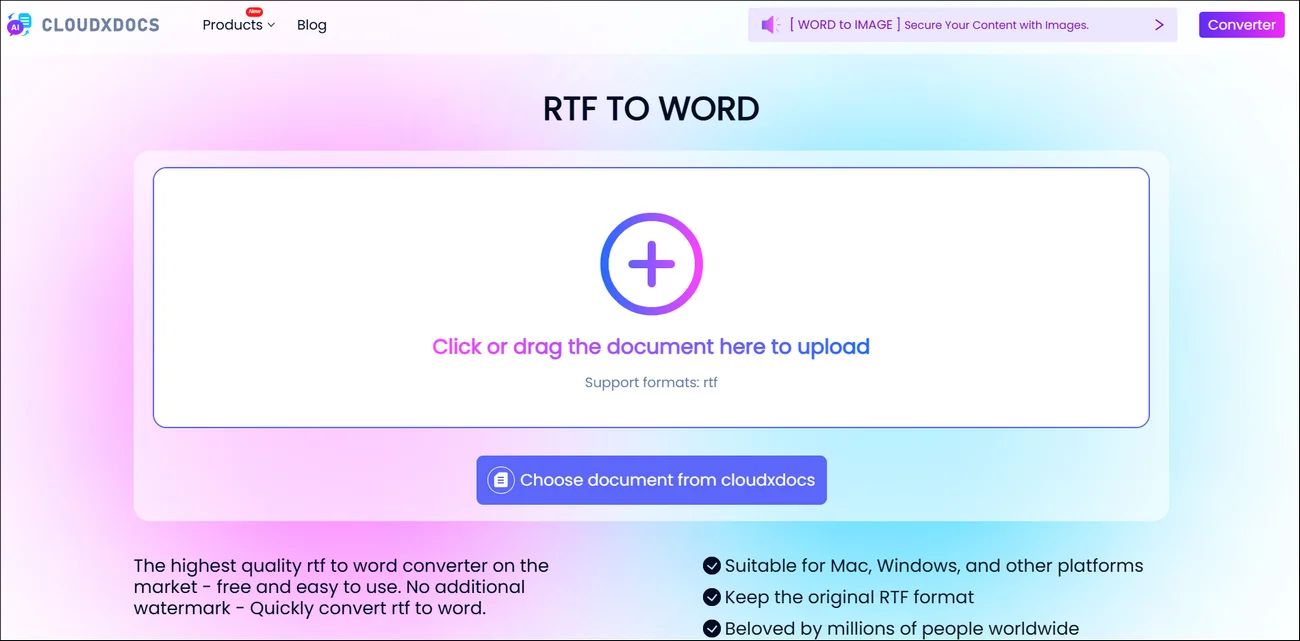
Step 2. You can click or drag to upload your RTF files and wait for CloudxDocs automatic file analysis.
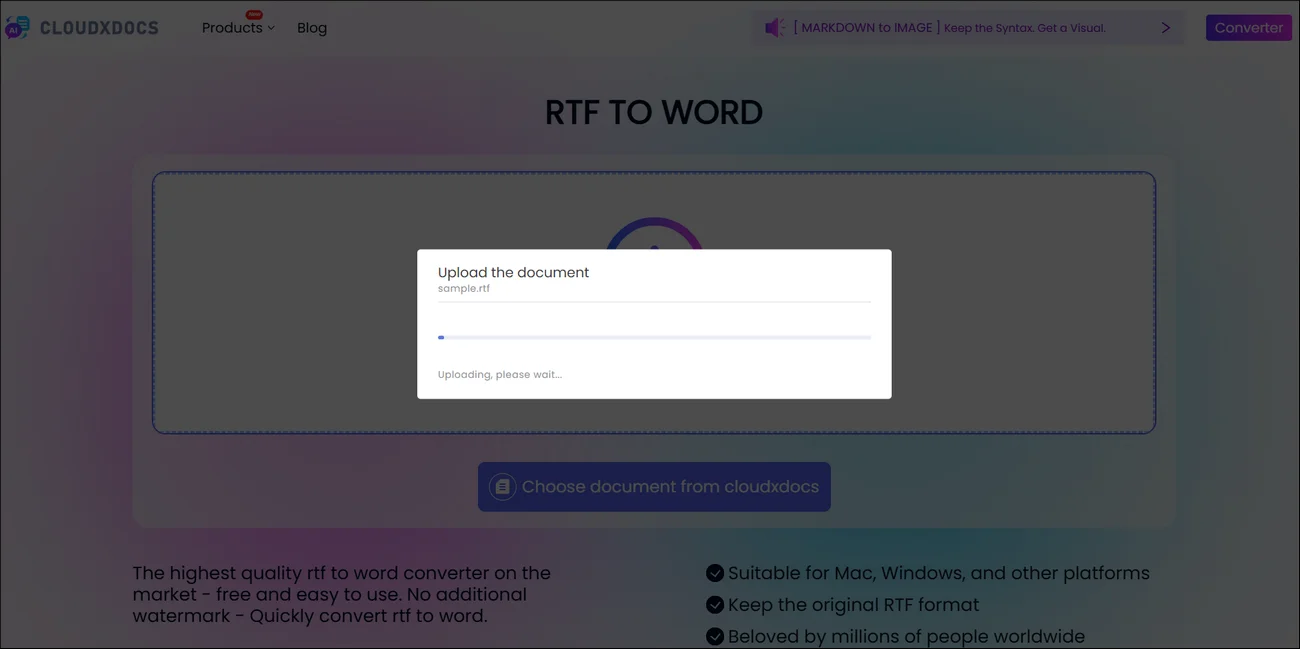
Step 3. After the file analysis, it will begin the conversion process immediately.
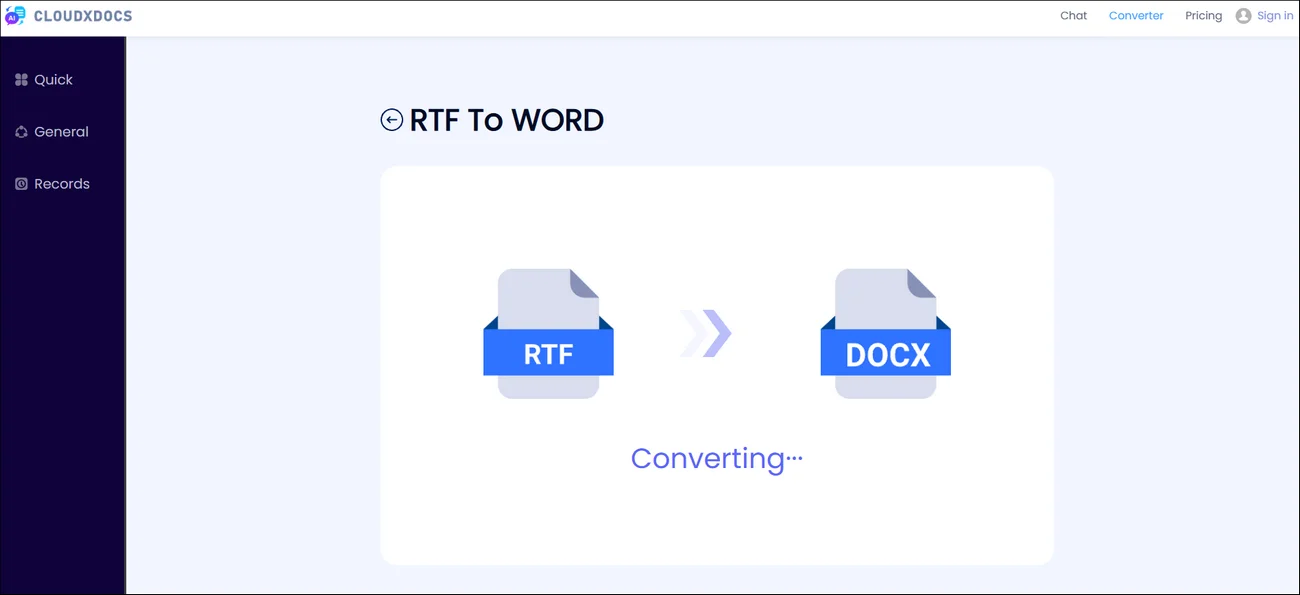
Step 4. The whole process won’t take too much time. Wait patiently and download the converted Word file to your local file location.
Method 3. Convert RTF to Word Programmatically with C#
Pros:
- Fully automated
- Suitable for batch processing
- High accuracy for formatting
- No Microsoft Word dependency
Cons:
- Require basic code knowledge
- Library integration and configuration needed
- Licensing required for production use
If you are developing .NET applications or handling enterprise document workflows, browser-based tools may not offer enough control or scalability. In these situations, programmatic conversion with C# provides a more efficient and automated approach.
Spire.Doc for .NET is a reliable solution that enables you to load RTF files and convert them to .doc or .docx directly within your application. It is well suited for batch processing, backend services, and enterprise systems that require stable and consistent output. The library provides comprehensive APIs for RTF parsing and Word export, and it works independently of Microsoft Word, making deployment simpler and more flexible.
Example C# code to convert RTF to Word format with Spire.Doc:
1 | using Spire.Doc; |
To learn more about converting between RTF and DOC formats, click this link for a detailed guide: C#/VB.NET: Convert RTF to Word Doc/Docx and Vice Versa
Common Challenges and Practical Tips When Converting RTF to Word
At first glance, converting RTF to Word seems straightforward. In reality, documents are often more complex than they appear. Once you’re working with detailed layouts, embedded images or tables, or a large batch of files, subtle differences between formats can lead to formatting glitches or slow down your workflow.
Being aware of these common challenges ahead of time makes it much easier to choose the right solution and avoid unexpected rework later on.
1. Formatting Does Not Look Exactly the Same
RTF supports basic formatting, while DOC and DOCX handle more advanced styling and layout logic. During conversion, fonts, spacing, numbered lists, or nested formatting may shift slightly, especially in heavily styled documents.
What you can do:
- Review the converted document carefully, focusing on fonts, alignment, and spacing.
- Reapply standardized Word styles when needed instead of manual formatting.
- Use reliable conversion tools that prioritize layout accuracy like CloudxDocs.
- For important files such as contracts or reports, compare the original and converted versions side by side.
2. Images, Tables, or Embedded Objects Break
RTF files often contain images, tables, or legacy embedded objects. After conversion, these elements may resize, move out of position, or lose part of their formatting.
What you can do:
- Test documents with complex layouts before deploying a solution at scale.
- Choose tools that properly support embedded content rendering.
- In automated workflows, add validation checks such as verifying image counts or table structures.
- Avoid outdated embedded object types whenever possible.
3. Manual Conversion Becomes Inefficient at Scale
Converting a few files manually is manageable. Converting hundreds or thousands is not. What works for occasional use quickly becomes time-consuming and error-prone in high-volume scenarios.
What you can do:
- Use programmatic solutions in .NET or Java for batch processing.
- Implement logging and error handling to monitor failures.
- Integrate conversion directly into your document management workflow.
- If document volume is part of your business process, automation should be the default, not an afterthought.
4. Version Compatibility Issues
Older RTF files created in legacy systems may not render perfectly in modern Word versions, leading to subtle but important layout differences.
What you can do:
- Standardize on DOCX as your final output format.
- Test converted files in the Word version used by your team or clients.
- Use compatibility mode when sharing documents externally.
For legal, financial, or compliance-related documents, even minor layout inconsistencies can introduce risk. Extra validation in these cases is not optional.
Practical Tip: Match the Method to Your Scenario
- For occasional personal use, Microsoft Word or an online tool is usually enough.
- For developer-driven automation, programmatic APIs offer better control and scalability.
- For enterprise-level or high-volume processing, automated batch conversion with validation is essential.
The goal is not simply to convert the file. The real objective is to ensure the final Word document is accurate, consistent, and ready for real-world use.
Wrap-Up
Converting RTF to Word is often a necessary step for better editing, collaboration, and long-term document management. The best method depends on your needs.
For occasional use, Microsoft Word is simple and reliable. For quick, no-install conversions, CloudxDocs offers a convenient online option. For automation and large-scale processing, a C# solution like Spire.Doc for .NET provides greater control and scalability.
Choose the approach that fits your workflow, and focus on ensuring your converted documents are accurate and ready for practical use.