Proven Methods to Convert PDF to PostScript on Windows & Mac
How to Convert PDF to PostScript Format on Windows and Mac
Page Content:
- Why Convert PDF to PostScript
- Convert PDF to PostScript Using an Online Tool (Windows & macOS)
- Convert PDF to PostScript on Windows Using a Virtual PostScript Printer
- Convert PDF to PostScript on macOS Using Built-in Features
- Convert PDF to PostScript Programmatically (For Developers)
- Expert Tips for Better Conversion Results
PDF and PostScript are closely related, yet they serve different purposes in document workflows. While PDF is widely used for viewing and sharing documents, PostScript (PS) remains essential in professional printing, publishing, and certain legacy systems. If you need precise print control, high-quality output for commercial presses, or compatibility with specific workflows, knowing how to convert PDF files to PostScript can save time and prevent formatting issues.
In this guide, we’ll walk you through practical and reliable methods to convert PDF to PostScript on both Windows and macOS. Whether you prefer built-in system features, virtual printers, command-line tools, or dedicated conversion software, you’ll find step-by-step solutions tailored to different skill levels.
Why Convert PDF to PostScript?
Before we get into the specific methods, it’s helpful to understand why this conversion still comes up in real workflows. PDF is ideal for sharing and viewing, but PostScript is built for direct communication with printers and production systems. In professional printing or prepress environments, that distinction matters. With that context in mind, let’s look at the practical ways you can convert PDF to PostScript on Windows and Mac.
Here are the most common reasons users choose to convert PDF files to PostScript format:
- Commercial Printing Requirements: Many professional printing houses and RIP (Raster Image Processor) systems are optimized for PostScript workflows, making PS files more compatible in high-end production environments.
- Prepress Processing and Typesetting: PostScript provides detailed page-level instructions, which can be beneficial in prepress stages where precise layout, color handling, and rendering control are required.
- Legacy System Compatibility: Some enterprise systems, older printers, or publishing infrastructures still rely on PostScript as a standard input format.
- Advanced Print Control: PostScript allows deeper control over printer behavior, which is useful for troubleshooting, diagnostics, and specialized print configurations.
- Workflow Standardization: In organizations where PostScript is the established internal standard, converting PDF to PS ensures consistency across document processing pipelines.
- Debugging and Output Testing: Developers and print technicians sometimes use PostScript files to analyze rendering behavior or isolate printing issues at a lower level.
If your workflow involves any of the scenarios above, converting PDF to PostScript isn’t just optional; it can be a practical necessity to maintain reliability and output accuracy.
Convert PDF to PostScript Using an Online Tool (Windows & macOS)
Before exploring more complex or device-specific solutions, let’s start with the fastest and most convenient option. To help you save time, the first method introduces an approach that works seamlessly for both Windows and macOS users: using an online conversion tool. There’s no need to install additional software, configure system printers, or deal with command-line operations—everything happens directly in your browser.
One of the newest and most efficient options available is CloudxDocs. As a modern online converter powered by advanced AI models, it is designed to optimize both conversion speed and output accuracy. This means your PDF files can be converted to PostScript format quickly while preserving layout, fonts, images, and formatting integrity.
Whether you’re working on a professional printing task or handling document processing requirements, this method provides a streamlined, cross-platform solution that reduces friction and improves efficiency right from the start.
Full steps of using CloudxDocs to convert PDF files to PostScript files are listed below:
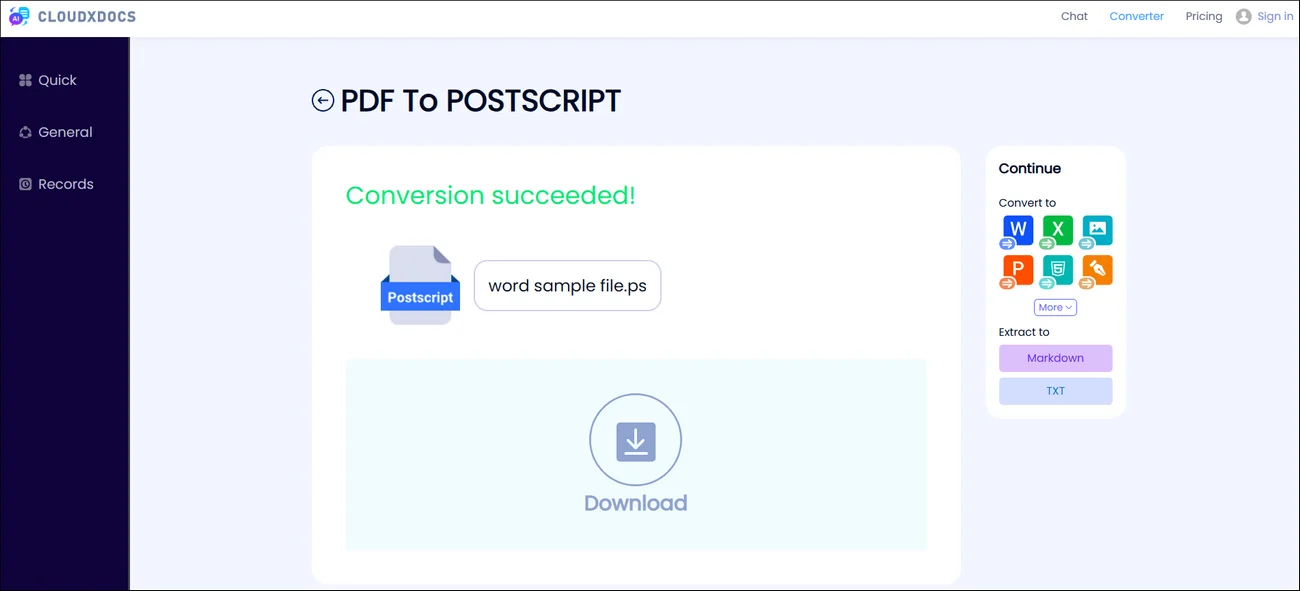
Step 1. Open the official website of the CloudxDocs Online PDF to PostScript Converter in your browser on a Windows or Mac computer.
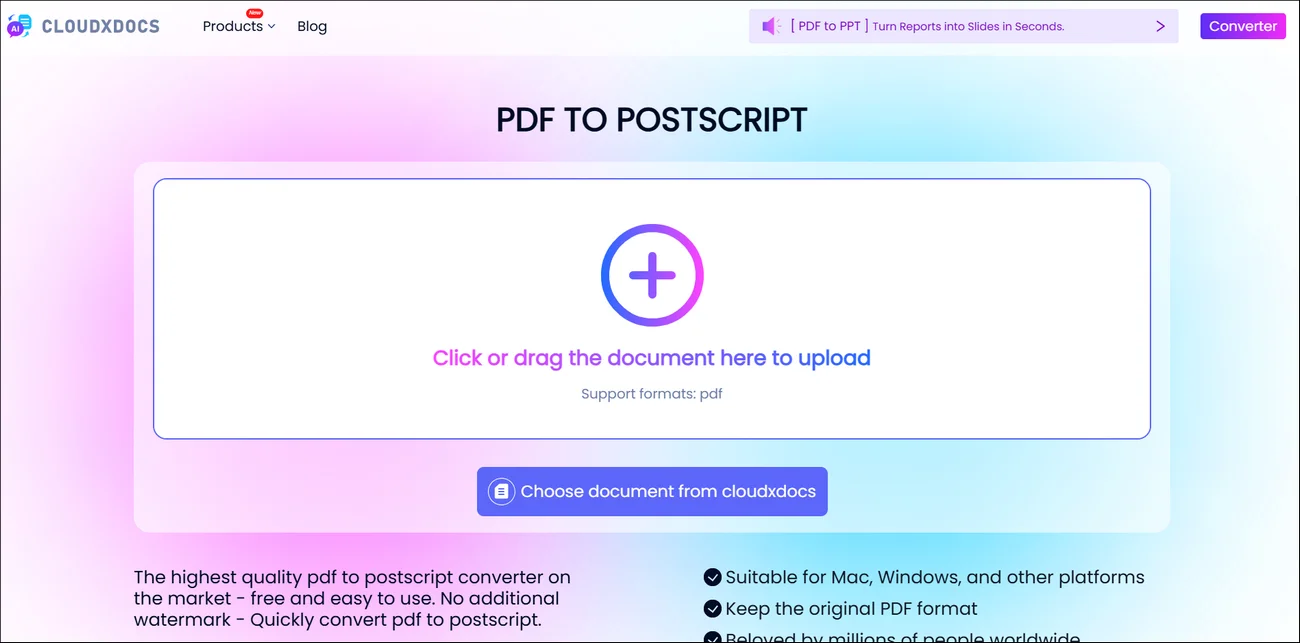
Step 2. Drag or click to upload the original PDF file you’d like to convert. Wait for CloudxDocs‘s automatic file analysis and conversion to complete.
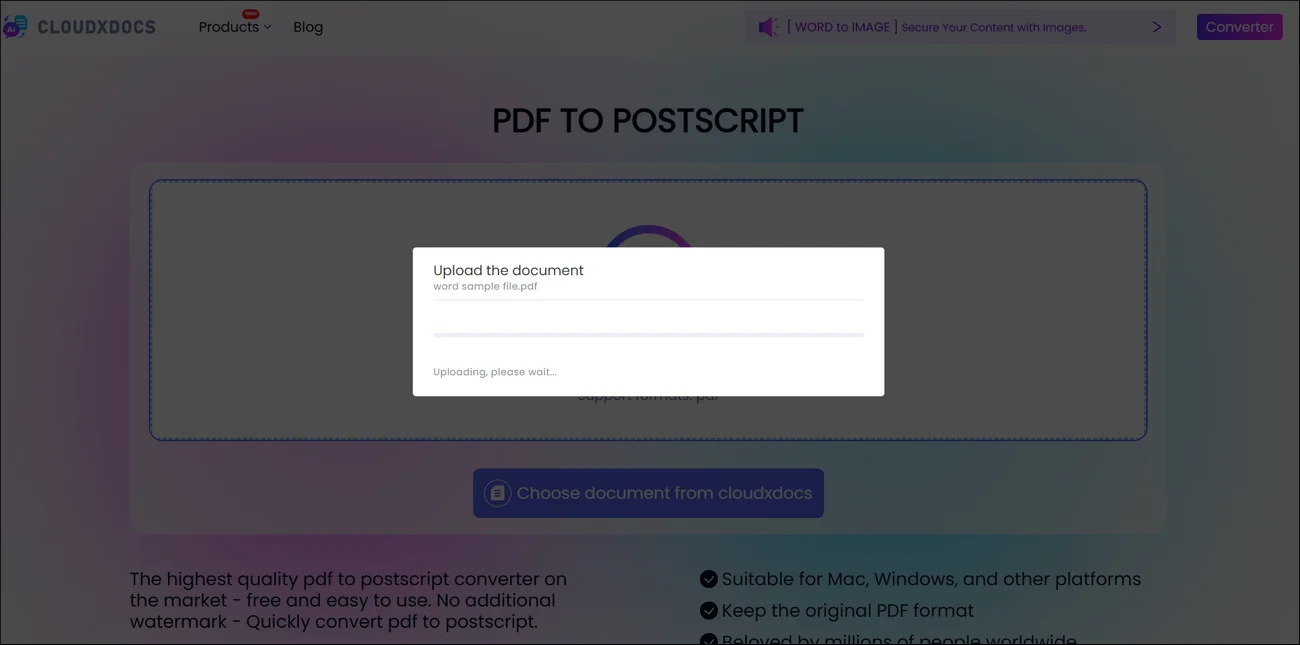
Step 3. After conversion, click the “Download“ button to save the converted PostScript file to your computer.
Convert PDF to PostScript on Windows Using a Virtual PostScript Printer
If you’d rather avoid using an online converter tool, or you’re working in a restricted IT environment where web uploads aren’t allowed, you can convert PDF to PostScript directly on Windows using a virtual PostScript printer.
Although Windows doesn’t provide a built-in “Save as PostScript” option, you can install a generic PostScript printer driver and print your PDF to a file instead of a physical printer. This effectively generates a PostScript (.ps) file from your PDF while keeping the entire process offline and under your control.
Full steps of using a virtual postscript printer on Windows:
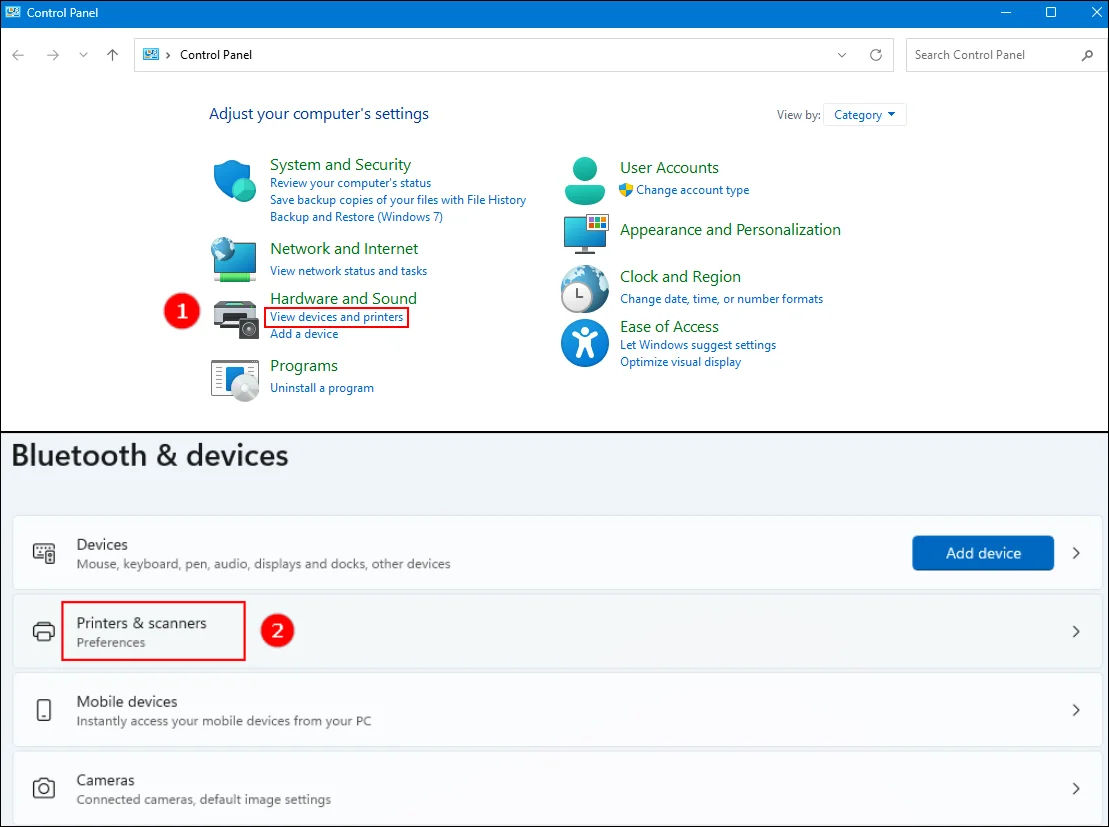
Step 1. Open “Control Panel“ on your Windows computer and choose “View devices and printers“ → “Printers & scanners“.
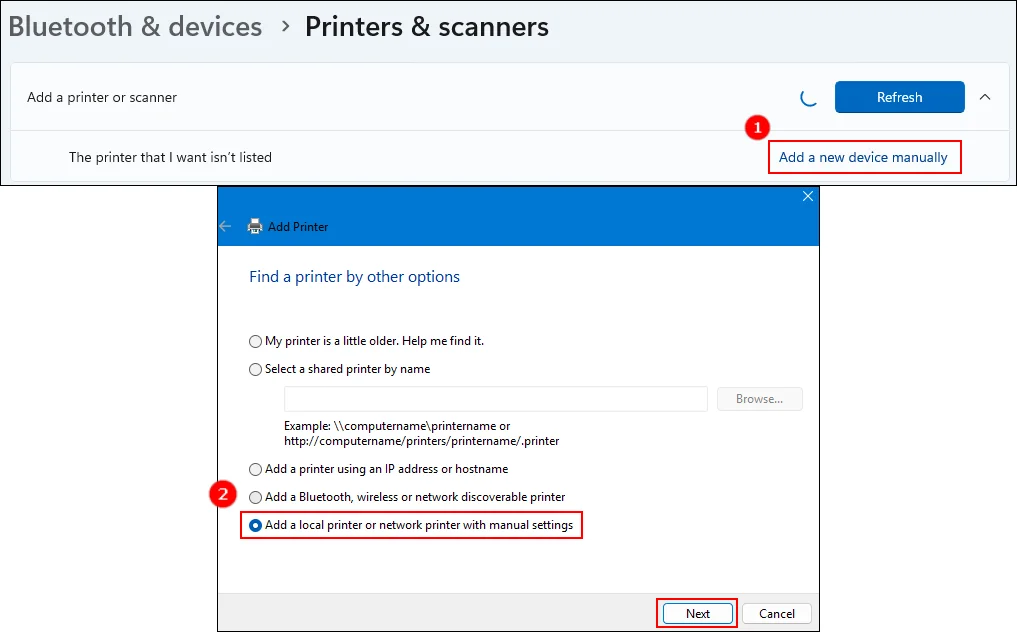
Step 2. A message saying “The printer that I want isn’t listed.“ will appear. Then select “Add a local printer or network printer with manual settings“ to add.
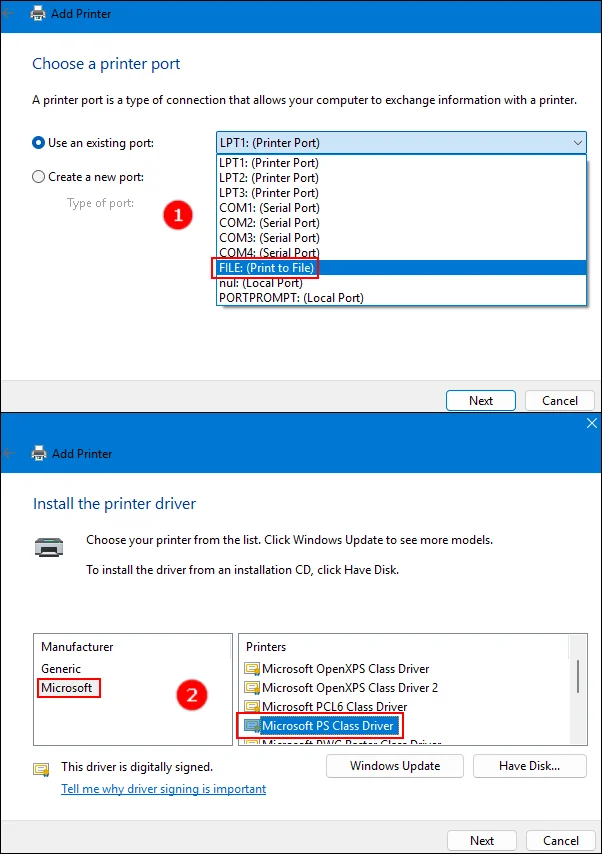
Step 3. Choose “FILE: (Print to File)“ as the port. Select a PostScript-compatible printer driver (for example, a generic PS printer driver). Finish the setup process.
Step 4. Open your PDF file in a viewer such as Adobe Acrobat Reader. Click “Print“, select the newly installed PostScript printer, and click “OK“.
Step 5. When prompted, save the output file with a “.ps“ extension.
Convert PDF to PostScript on macOS Using Built-in Features
If you’re using a Mac computer, the process is even more straightforward. Unlike Windows, macOS includes native PostScript support within its built-in printing system.
In most cases, there’s no need to install additional drivers or configure a virtual printer—the ability to generate a PostScript file is already integrated into the system, allowing you to create a .ps file directly through the standard print workflow.
How to convert PDF to PostScript on macOS:
Step 1. Open your PDF file in “Preview“.
Step 2. Click “File“ → “Print“.
Step 3. In the Print dialog box, click the PDF dropdown menu at the bottom-left corner.
Step 4. Select “Save as PostScript“.
Step 5. Choose your save location and confirm. The “.ps“ file will be generated instantly.
Convert PDF to PostScript Programmatically (For Developers)
When working with large volumes of documents on either Windows or macOS, manual methods quickly become inefficient. Printing files one by one or uploading them to an online converter simply doesn’t scale in production environments.
For developers building enterprise systems, backend services, or automated workflows, an API-driven approach is far more practical. Cross-platform libraries such as Spire.PDF allow you to convert PDF files to PostScript programmatically, making it easy to integrate the process into applications running on Windows or Mac and handle high-volume document conversion with consistency and control.
This approach is ideal for:
- Batch processing systems
- Automated server-side workflows
- Enterprise document management platforms
- SaaS document services
Below is a simple C# example demonstrating how to convert PDF to PostScript using Spire.PDF:
1 | using Spire.Pdf; |
For a more detailed guide of using Spire.PDF to convert PDF files to PostScript file, check the tutorial of the official site: Convert PDF to PostScript with C#/VB.NET
Expert Tips for Better Conversion Results
No matter which approach you use—online tools, built-in system features, virtual printers, or developer APIs—the quality of the final PostScript file still depends on proper preparation and verification. A few small precautions can make a significant difference in output reliability.
Regardless of which method you choose, keep these best practices in mind:
- Ensure fonts are embedded in the original PDF to avoid substitution issues.
- Check page size and orientation settings before conversion.
- For commercial printing, confirm compatibility with your printer’s RIP system.
- Test a sample file before batch conversion in production environments.
- Validate output visually to confirm layout accuracy.
Small checks upfront can prevent costly print errors later.
Final Thoughts
Converting PDF to PostScript remains essential in professional printing and production workflows. The right method depends on your needs—use an online tool for quick tasks, system printing features for offline control, or a developer API for automation at scale.
Choose the approach that fits your environment, verify your output carefully, and you’ll ensure consistent, print-ready results every time.