Excel to HTML Conversion: How to Convert Excel Files to HTML Easily
Excel to HTML Conversion: How to Convert Excel Files to HTML Efficiently
Page Info:
- Reasons Why Users Convert Excel to HTML
- Method 1. Convert Excel to HTML with Microsoft Excel
- Method 2. Use an Online Excel to HTML Converter
- Method 3. Programmatic Solution of Excel to HTML Conversion
Introduction
Microsoft Excel is widely used for organizing data, creating reports, and managing spreadsheets. From financial reports to project tracking sheets, Excel remains one of the most powerful tools for working with structured data. However, when you need to publish spreadsheet content online, Excel files are not always the most suitable format.
This is where Excel to HTML conversion becomes extremely useful. Converting Excel spreadsheets into HTML allows you to display tables directly in web pages, dashboards, documentation, or blogs. Instead of sharing downloadable spreadsheet files, you can present data in a format that is instantly accessible through a web browser.
In this article, we’ll explore why Excel to HTML conversion is important and the best methods to convert Excel files into HTML efficiently.
Reasons Why Users Convert Excel to HTML
Excel files are great for data analysis, but they are not well suited for web-based distribution. When users need to display spreadsheet data on websites or share it through web applications, converting Excel files to HTML becomes a practical solution.
By converting spreadsheets into HTML, the data can be displayed directly in web browsers, embedded into webpages, and easily integrated into modern web systems.
Some of the main reasons include:
- Display Data Directly on Websites: Converting Excel spreadsheets to HTML allows the data to be embedded directly into web pages. Visitors can view the information instantly in a browser without downloading the original Excel file.
- Improve Accessibility: Not every user has Excel installed. HTML content can be opened in any modern browser, making the data accessible across Windows, macOS, Linux, tablets, and mobile devices.
- Enable Web Integration: After the spreadsheet is converted to HTML, developers can further enhance the content using CSS and JavaScript to build responsive tables, searchable data views, or interactive dashboards.
- Simplify Data Sharing: Instead of sending spreadsheets as attachments or providing download links, the data can be embedded directly into documentation systems, internal portals, or knowledge bases.
To take advantage of these benefits, Excel files need to be converted into HTML format. In the following sections, we will explore several common methods for converting Excel spreadsheets to HTML.
Method 1. Convert Excel to HTML with Microsoft Excel
One of the simplest ways to convert Excel files to HTML is by using Microsoft Excel itself. Excel provides a built-in feature that allows users to save a worksheet or an entire workbook as an HTML webpage. This method is suitable for quick conversions when you want to publish spreadsheet data directly to the web without using additional tools.
Follow the steps below to convert an Excel file to HTML using Microsoft Excel:
Step 1. Open the Excel file with Microsoft Excel. Click “File“ from the ribbon to save your Excel file to other formats.
Step 2. Click “Save as“ and choose “Web Page (*.htm, *html)“ to save your Excel file in HTML file directly.
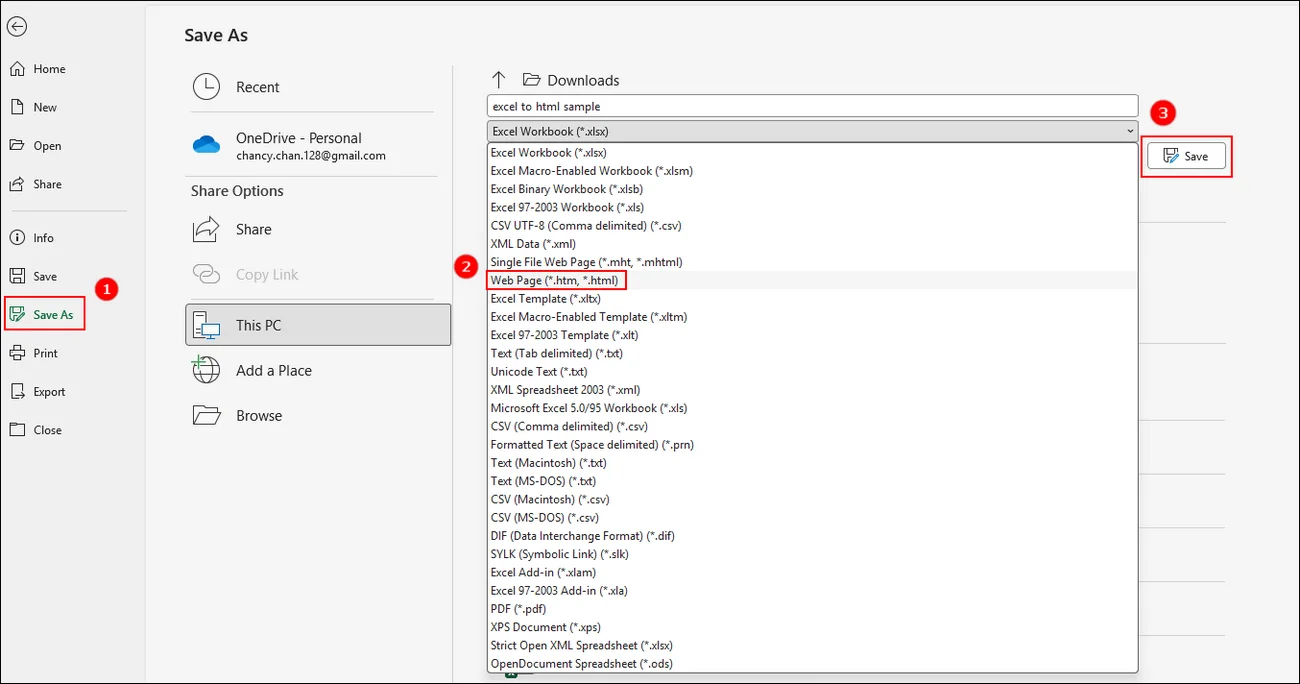
This method is simple and does not require any additional tools, since the conversion can be done directly within Microsoft Excel. However, the HTML generated by Excel may sometimes contain complex or redundant code, which can make the output less suitable for further editing or integration into web projects.
Method 2. Use an Online Excel to HTML Converter
Microsoft Excel provides a quick and convenient way to convert spreadsheets to HTML. However, the generated HTML may sometimes differ in formatting from the original spreadsheet, which can require additional adjustments. In this time, users always turn to online tools for help, which offers an alternative that produces cleaner, more consistent HTML while still being accessible in any browser and on any device.
CloudxDocs Online Converter is a powerful solution for this purpose. It converts Excel files into well-structured HTML that can be embedded directly into websites, documentation systems, or internal portals. In addition to supporting large spreadsheets and multiple formats, it offers features that improve workflow and usability.
Main features of CloudxDocs are listed below:
- No Installation Needed: Convert files from any device without installing software.
- Fast and Secure Conversion: Efficiently handles large spreadsheets with automatic delete after conversion in 24 hours to protect your data security.
- Cross-Platform Accessibility: Works seamlessly on Windows, macOS, Linux, tablets, and mobile devices.
- Various Format Support: CloudxDocs supports multiple file format conversion including HTML to Image, PowerPoint to SVG, PDF to TXT, etc.
The steps of using CloudxDocs to convert Excel to HTML format:
Step 1. Go to the official website of CloudxDocs Online Excel to HTML Converter.
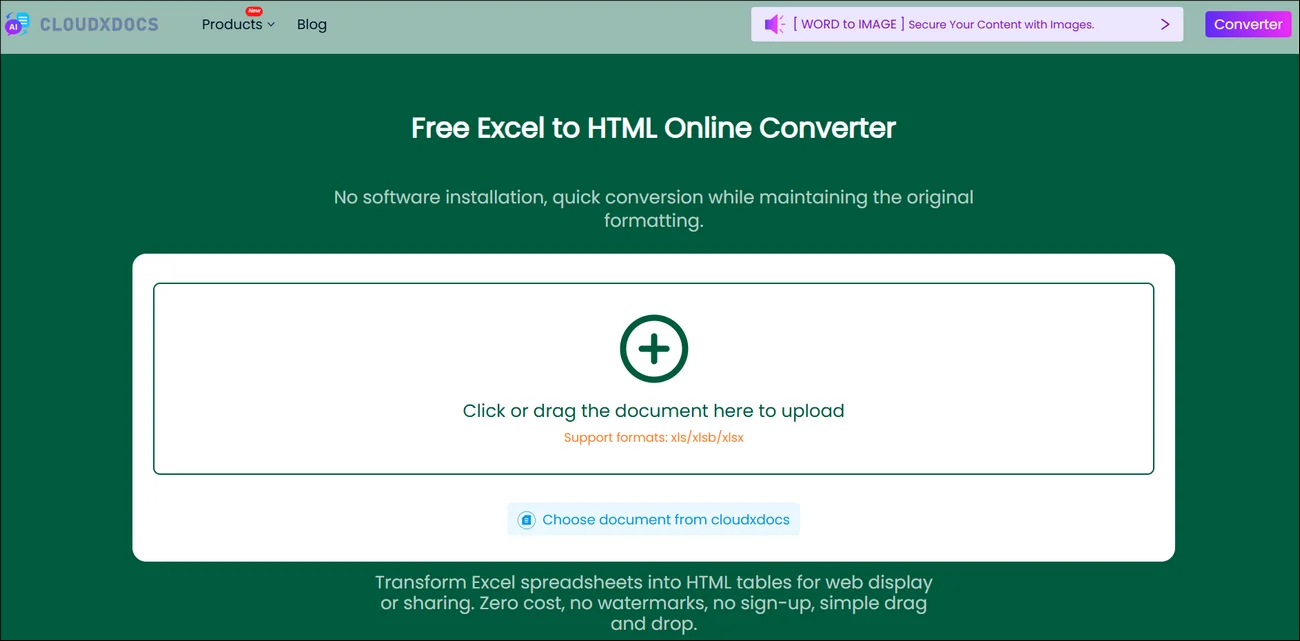
Step 2. Users can click or drag to upload your Excel file. CloudxDocs will start to analyze your Excel file for best conversion.
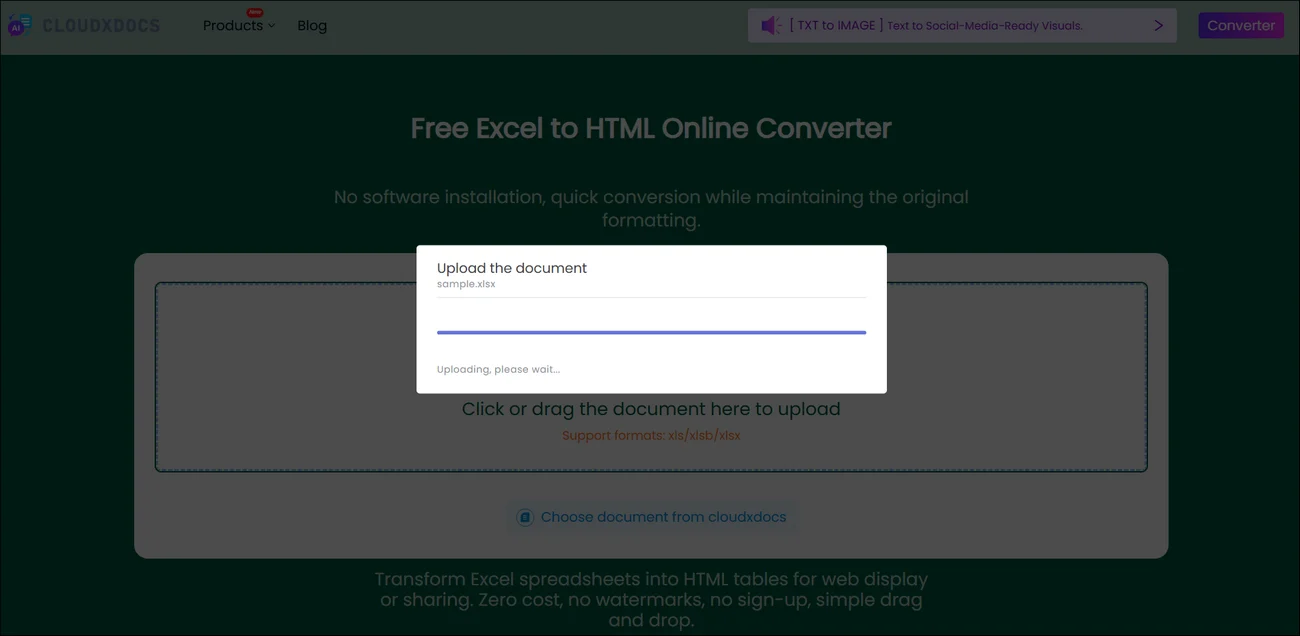
Step 3. Wait for CloudxDocs’s automatically file format conversion. The whole process won’t take much time.

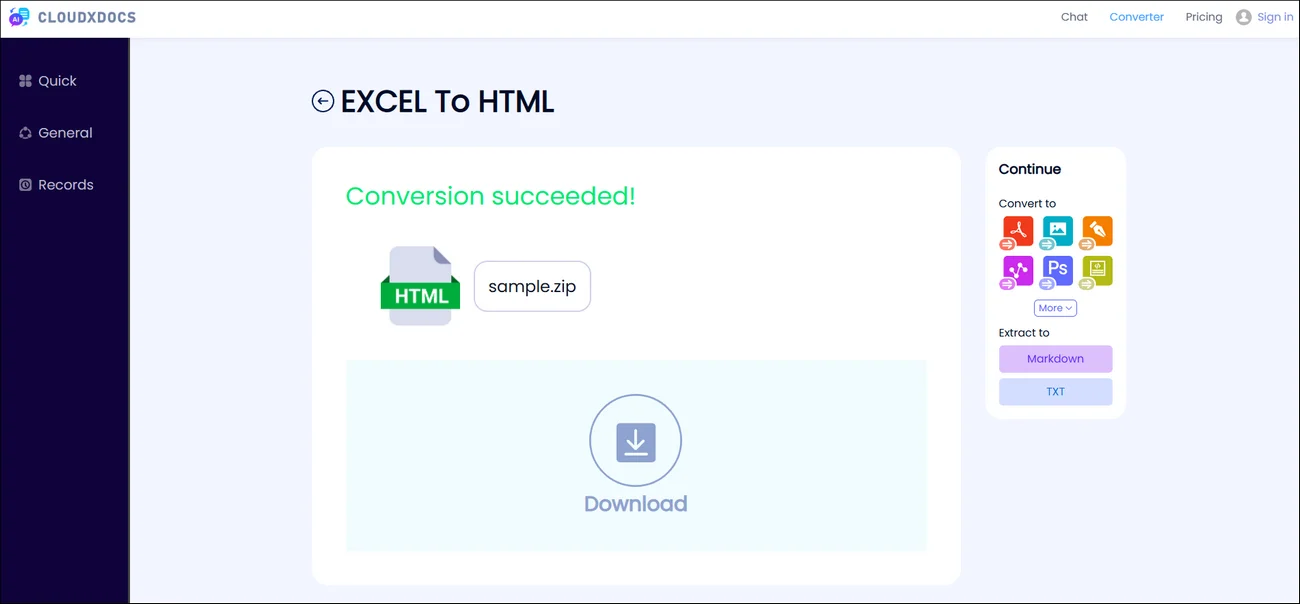
Step 4. After conversion, click the “Download“ button to save the converted HTML file to your local file location.
Method 3. Programmatic Solution of Excel to HTML Conversion
For developers or businesses that need to process large volumes of spreadsheets with automatic workflow, programmatic conversion provides a flexible and efficient solution. Spire.XLS for .NET(https://www.e-iceblue.com/Introduce/excel-for-net-introduce.html) is a powerful library that allows you to automate Excel-to-HTML conversions directly within your .NET applications.

With Spire.XLS, you can load multiple Excel files, convert worksheets to clean HTML, and fully customize table styles and layouts. This approach gives developers complete control over formatting and enables seamless integration of spreadsheet data into web applications or internal systems.
Here are the specific steps of using code lines to convert Excel to HTML with Spire.XLS for .NET:
Step 1. Install the Spire.XLS for .NET as references in your .NET project. You can add through the official download link or install with NuGet.
1 | PM> Install-Package Spire.XLS |
Step 2. Copy the following code and adjust according to your specific situation.
Sample Code:
1 | using Spire.Xls; |
Conclusion
Excel is excellent for managing and analyzing data, but HTML is better suited for sharing it online. Excel to HTML conversion allows spreadsheet content to be displayed directly in browsers, embedded in websites, or integrated into web applications, making the data more accessible and easier to share.
Depending on your needs, you can use Excel’s built-in export for quick conversions, online tools like CloudxDocs for cleaner and more consistent HTML, or Spire.XLS for .NET for automated and fully customizable conversions. Choosing the right method helps streamline your workflow and ensures that spreadsheet data is presented clearly and efficiently across platforms.